Marketers and Outreach logins
What this is for
Before orders can be counted for a marketer, the marketer has to exist. This page covers adding and editing marketers, deactivating them, and creating the login a marketer uses to see their own numbers in the Outreach app.
Giving marketers their ordering facilities is on the next page: Ordering facilities and marketers.
Before you start
- You need an Organization Admin login (the Admin app).
- Open Practices, click the edit icon on the practice, then the Outreach tab. The tab is there only when Marketer Outreach is switched on for the practice — if you don't see it, ask your eClaim Pilot contact to switch it on.
- The tab opens on By marketer. The amber banner across the top counts what has no marketer yet — see Ordering facilities and marketers.
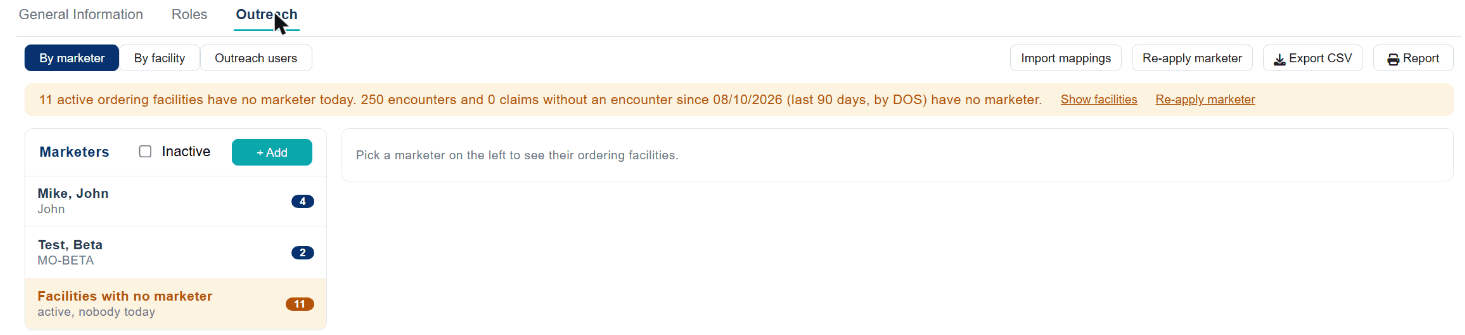
| Layout | Shows |
|---|---|
| By marketer | each marketer, their details and login, and their ordering facilities |
| By facility | every active ordering facility with its marketer today — see Ordering facilities and marketers |
| Outreach users | every marketer login, with its status and last sign-in |
Add a marketer
- Click + Add above the marketer list.
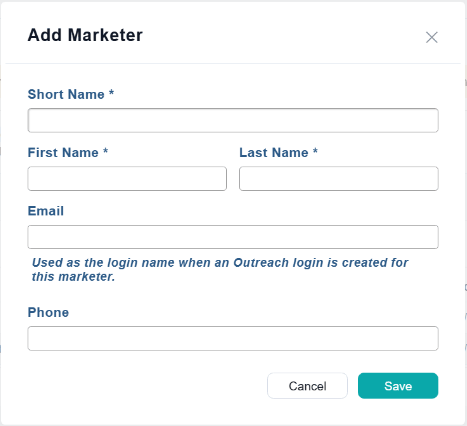
- Fill in the Add Marketer box and click Save.
| Field | Rules |
|---|---|
| Short Name * | up to 50 characters: letters, numbers, spaces and _ - ' .; must be unique in the practice (capitals don't count — mk01 and MK01 are the same). Used in the mappings CSV file and shown in brackets on the scorecard |
| First Name , Last Name* * | up to 100 characters each; the marketer is shown as Last, First |
| optional, but needed for a login — it becomes the login name. Keep it to 50 characters if the marketer will have a login | |
| Phone | optional, up to 30 characters |
Example
Short Name MK01, First Name Rachel, Last Name Dominguez, Email rachel.d@example.com. The marketer shows as Dominguez, Rachel and as Dominguez, Rachel (MK01) on the scorecard.
To change a marketer, click them in the list, then Edit.
Many marketers at once: in the Billing UI, schedule a Marketer Import — a CSV or Excel file with the same five fields, one marketer per row. See Master data imports.
Deactivate a marketer
Click the marketer, then Deactivate, and answer Yes. When the marketer has an Outreach login that is on, the question names it: Deactivate Test, Beta? Their Outreach login … is switched off too.
- A marketer who still has ordering facilities today or later cannot be deactivated. The message lists them: End or reassign this marketer's facilities first: …. End or hand over each one first (how).
- Deactivating the marketer also turns off their Outreach login. Activating the marketer again does not turn the login back on, and a message says so: … is active again. Their Outreach login … is still off; use Activate login to switch it on.
- Inactive marketers disappear from the list; tick Inactive to see them. Their past orders stay counted under them on the scorecard.
Create an Outreach login
A marketer signs in to the separate Outreach app to see only their own numbers. The login can sign in only to the Outreach app — Billing, Admin, Scorecard and Clinic refuse it.
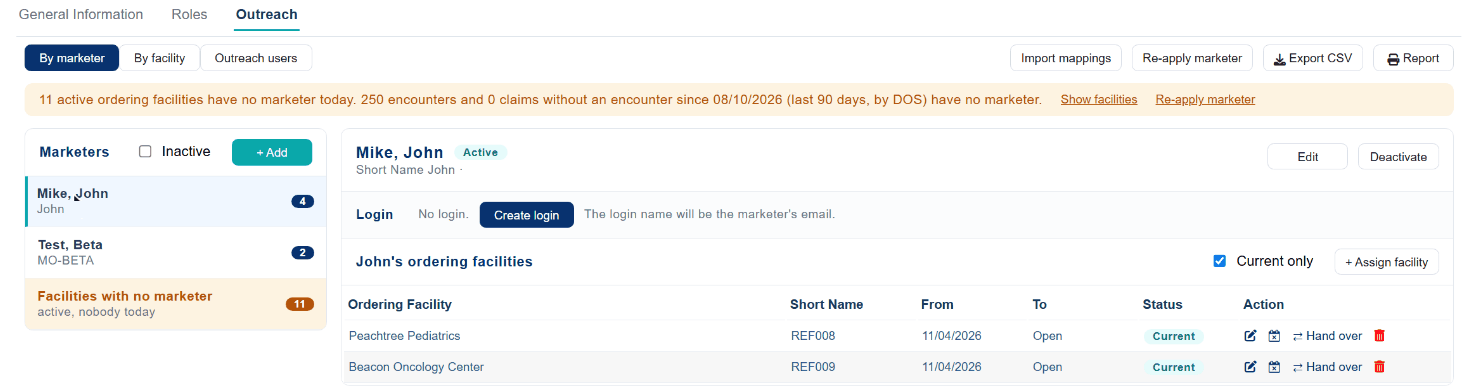
- Click the marketer. Under Login it says No login.
- Click Create login and answer Yes.
- A box shows the User Name (the marketer's email) and a Temporary Password. Either click Send in Email to email both, with the app link, to the marketer, or Copy Password and give it to them yourself. The password is shown only this once.
At their first sign-in the marketer must choose their own password before they see anything.
Create login is refused when:
| Message | What to do |
|---|---|
| Add an email to the marketer first. The email becomes the login name. | Edit the marketer and add an email |
| The marketer's email is longer than 50 characters, too long for a login name. | give the marketer a shorter email |
| … is already a user name. Change the marketer's email first. | someone already signs in with that email — use another one |
| Activate the marketer first. | the marketer is inactive |
Changing the email later
The email is the login name, so when you Edit a marketer's email the login follows: the marketer signs in with the new email from then on, and Forgot password? and Send in Email go to it. Tell the marketer their new user name — if they are signed in, the change signs them out. The save is refused, and nothing changes, when the new email is blank, longer than 50 characters, or already someone else's user name (… is already a user name. Use another email for this marketer.).
Manage a login
Once a marketer has a login, the Login line shows the user name, its status and Access: … · Last login: …. The same actions are on the Outreach users layout, one row per login:

| Action | What it does |
|---|---|
| Reset password | makes a new temporary password, shown once, with Send in Email; the marketer must choose a new password at their next sign-in |
| Deactivate login | the login can no longer sign in; a marketer already signed in is stopped at their next click. Nothing is deleted |
| Activate login | lets the login sign in again (refused while the marketer is inactive) |
| Access dates | Access from / Access to: outside these dates the login is refused. Leave a date blank for no limit |
Status: Active; Inactive (login deactivated); Expired (today is after its access dates); Not yet active (access starts later).
Send in Email
After Send in Email the box says Sending the email… the result shows in a separate message. The result is the message that follows: Email sent to … or The email could not be sent. Copy the password and give it to the marketer.
Common problems
| You see | Why | What to do |
|---|---|---|
| No Outreach tab on the practice | Marketer Outreach is off for the practice, or the practice is not saved yet | ask your eClaim Pilot contact to switch it on |
| Outreach is not enabled for this practice. when saving | Outreach was switched off while the tab was open | close and reopen the practice |
| Deactivate refused, End or reassign this marketer's facilities first | the marketer still has ordering facilities today or later (future ones count) | end or hand over each one, then deactivate |
| The marketer can't sign in after being activated again | activating the marketer leaves the login off | Activate login |
| Send in Email is greyed | the marketer has no email, or is inactive and the list hides inactive marketers | add an email; or tick Inactive, open the marketer and use Reset password again |
| A marketer says the email never came | the mail server refused it, or it went to an old address | copy the password and give it to them, or check the email on the marketer |
Related
- Ordering facilities and marketers
- My Scorecard (Outreach app) — what the marketer sees
- Marketer Outreach overview