Aging reports
What this is for
The aging reports show the open balances on your claims, split by how old they are. Use them to decide what to follow up first, to check the A/R before month end, and to find claims a payer never answered.
| Report | What it shows |
|---|---|
| Aging Summary | every open balance — the patient row first, then each payer — in 30-day buckets |
| Aging Summary by Insurance | open insurance balances per payer, in 30-day buckets; can be split by rendering provider |
| Aging Detail by Insurance | every open insurance claim, grouped by payer, with its age |
| Aging Detail by Patient | every claim with a patient balance, grouped by patient |
| No Response Aging Summary by Insurance | balances billed to a payer that has never answered, per payer |
| No Response Aging Details | the claims behind that summary |
| Aging by Service Month | open balance per payer by the month of service, up to twelve months |
Before you start
- Open them from Reports → Reports Overview → Aging Reports, or type the report name in the menu search. How the screen, the filters and the PDF / CSV output work is the same for every report — see Running a report.
- Every aging report is as of today. There is no "as of" date to choose.
- The buckets are fixed: 0-30, 31-60, 61-90, 91-120, 121-150 and Over 150 days. A claim with a future date counts in 0-30.
- Only active claims with a balance above zero are counted.
The Aging By date
Most aging reports ask Aging By — the date the age is counted from. The age is the number of days from that date to today.
| Aging By | The age is counted from |
|---|---|
| Service Date | the date of service |
| First Billed Date | the first time the claim was billed to insurance |
| Last Billed Date | the last time the claim was billed (a rebill starts the clock again) |
| Last Follow-up Date | the last follow-up recorded on the claim |
| Last Statement Date (patient) | the last patient statement; if none, the last insurance posting; if none, the date of service |
A claim without that date is left out
If a claim has no date of the kind you chose, it is not on the report at all. Under Last Billed Date, a claim that was never billed is missing; under Last Follow-up Date, a claim nobody has followed up is missing. Use Service Date when you want every open claim.
The optional Date range (on the Aging By date) limits the report to claims whose Aging By date falls in that range — it does not change the "as of today". Fill both ends or neither.
Example
Today is 10/07. A claim with service date 06/20 was billed on 07/01 and billed again on 08/15. By Service Date it is 109 days old (91-120). By First Billed Date it is 98 days old (91-120). By Last Billed Date it is 53 days old (31-60).
Aging Summary
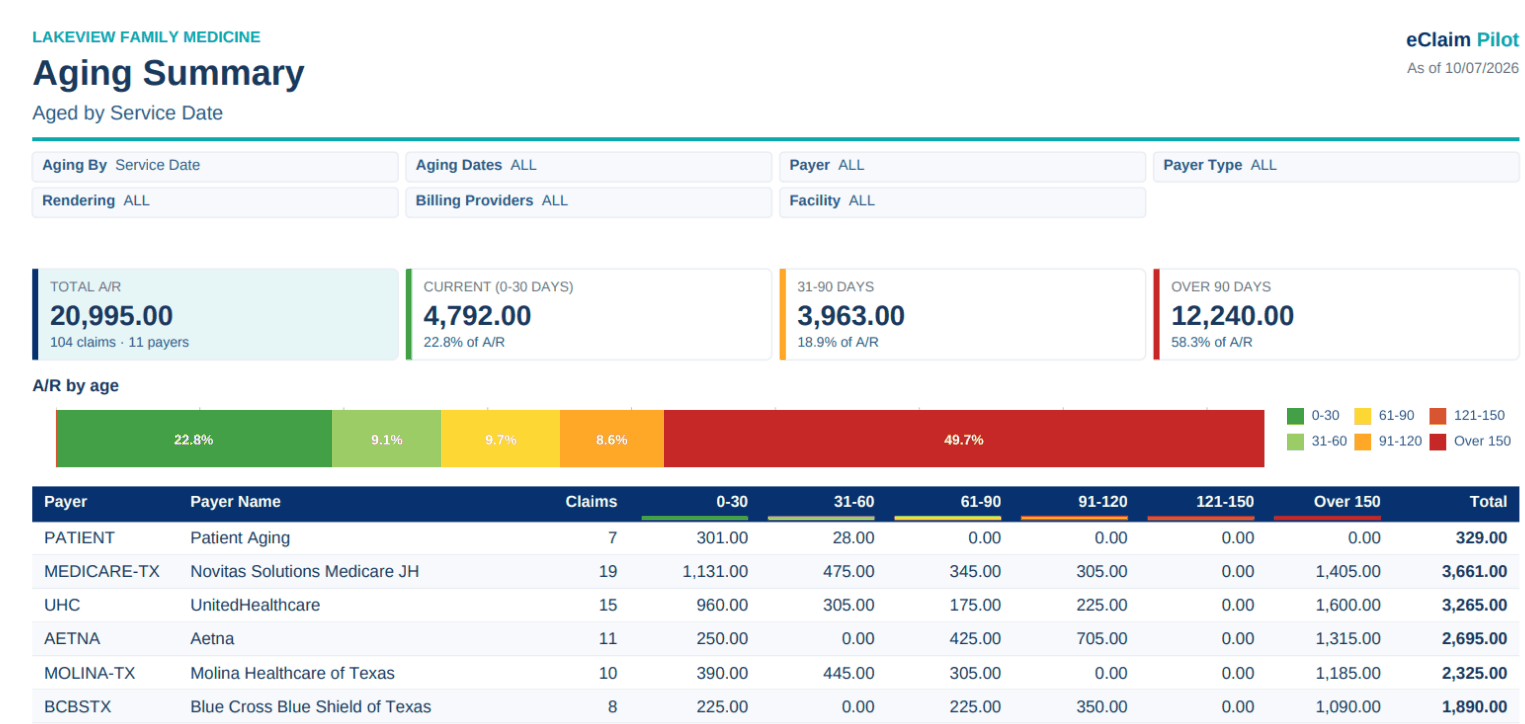
All open balances in one table: a Patient Aging row first (when any patient balance is open), then one row per payer, largest first, then the Grand Total.
- Aging By: Service Date (default) or Last Billed Date (patient: last statement).
- Group By: Payer.
- Filters: Payer, Payer Type, Rendering Provider, Billing Provider, Facility.
Note
Payer and Payer Type filter the payer rows only — the Patient Aging row is always the whole patient balance for the other filters you chose.
A claim's insurance balance is shown under the payer it was last billed to; a claim not billed yet is shown under its primary payer.
Aging Summary by Insurance
Open insurance balances only, one row per payer, in the six buckets.
- Aging By: Service Date, First Billed Date, Last Billed Date (default) or Last Follow-up Date.
- Current Responsibility: All (default), Primary or Secondary — whether the balance is now with the primary or the secondary payer. A claim not billed yet counts as Primary.
- Group By: Payer (default) or Rendering Provider, then Payer — one block per rendering provider, each with its own subtotal.
- Filters: Payer, Payer Type, Rendering Provider, Billing Provider, Facility, Billing Type.
The default is Last Billed Date
This report starts on Last Billed Date; Aging Summary and Aging Detail by Insurance start on Service Date. Claims never billed are left out under Last Billed, so the totals will not agree until you pick the same Aging By on both.
The PDF: four boxes at the top — TOTAL A/R (with the number of claims and payers), CURRENT (0-30 DAYS), 31-90 DAYS and OVER 90 DAYS, each with its share of the A/R — and an A/R by age bar coloured from green (current) to red (over 150). Then the table and a navy Grand Total. The Aging Summary PDF looks the same.
Aging Detail by Insurance
Every open insurance claim, grouped by payer — patient, DOB, claim number, date of service, payer order (1 primary, 2 secondary), age, billed, adjustments, insurance payments, insurance balance and total balance. Sorted by payer, then date of service.
- Aging By: Service Date (default) or Last Billed Date.
- Aging Bucket: All (default) or one bucket — for example 91-120 Days to list only the claims in that column of the summary.
- Current Responsibility: All, Primary or Secondary.
- Filters: as Aging Summary by Insurance.
The PDF: boxes TOTAL BALANCE, INSURANCE BALANCE, OVER 90 DAYS and AVERAGE AGE; a band per payer with its subtotal; each claim's age coloured by its bucket.
Tying it to the summary
TOTAL BALANCE on this PDF includes any patient balance on the claims. Compare INSURANCE BALANCE with the summary's total.
Example
The summary shows $4,200 for Payer ABC in 91-120 days. Run Aging Detail by Insurance with Aging By the same as the summary, Aging Bucket = 91-120 Days and Payer = Payer ABC: you get the claims that make up the $4,200.
Aging Detail by Patient
Every claim with a patient balance, grouped by patient — claim, date of service, aging date, age, billed, adjustments, write off, coinsurance, deductible, patient payments and patient balance.
- Aging By: Service Date (default) or Last Statement Date.
- Aging Bucket: All or one bucket.
- Group By: Patient.
- Filters: Payer Type, Rendering Provider, Billing Provider, Facility, Billing Type (no Payer filter).
Self-pay claims are included here. The PDF: boxes PATIENT BALANCE, PATIENT PAYMENTS (with coinsurance and deductible), OVER 90 DAYS and AVERAGE AGE; a band per patient.
No Response aging
No Response Aging Summary by Insurance (per payer) and No Response Aging Details (the claims) find claims a payer has never answered. A claim is on them when:
- it has been billed to a payer at least once;
- no insurance posting of any kind has ever been made on it — no payment, no denial, manual or ERA;
- it still has a balance; and
- it is more than 30 days old on the Aging By date.
So the buckets start at 31-60; there is no 0-30 column.
- Aging By: Last Billed Date (default), Service Date, First Billed Date or Last Follow-up Date. Keep Last Billed Date to measure "30 days since we billed".
- Filters: Payer, Rendering Provider, Facility, Billing Type.
What these reports do not catch
A 999 or 277CA acceptance is not a response — only a posting is. And a claim the primary has paid or denied, now billed to the secondary with no answer, is not listed: it already has an insurance posting. The amounts are the claim's total balance, patient part included.
The PDF: boxes NO RESPONSE TOTAL, 31-90 DAYS, 91-150 DAYS and OVER 150 DAYS on the summary; NO RESPONSE BALANCE, BILLED, OVER 90 DAYS and AVERAGE AGE on the details, with a band per payer.
Aging by Service Month
Open balance per payer, with one column per month of service, so you can see which months' visits are still unpaid.
- From Month / From Year and To Month / To Year — at most twelve months. It starts on the last twelve months, ending this month.
- Balance: Insurance Balance (default) or Patient Balance. For patient balance the rows are still by payer (last billed, else primary); self-pay claims show as No Payer.
- Filters: Payer, Payer Type, Rendering Provider, Billing Provider, Facility, Billing Type.
Columns: Before (first month) for everything older, one column per month, then Total.
Service dates after the To month are left out
Choosing a range that ends before this month leaves out the newer visits, so the total is not your current A/R. End the range on this month to see everything.
The PDF: boxes TOTAL, LATEST MONTH, LARGEST MONTH and BEFORE (first month), and a bar per column.
Good to know
- All amounts are what is open today. Running the same report tomorrow can give different numbers, even for an old date range.
- Nothing on these reports changes a claim. To work the claims, use Manage Claim.
Common problems
| You see | Why | What to do |
|---|---|---|
| Aging Summary by Insurance total is lower than Aging Summary's payer rows | it defaults to Last Billed Date, which leaves out claims never billed | choose the same Aging By on both |
| Detail total does not match the summary | the detail's TOTAL BALANCE includes patient balance | compare INSURANCE BALANCE instead |
| The Aging Summary PDF says one payer more than you have | the Patient Aging row is counted as a payer in the "N payers" line | read the payer rows in the table |
| A claim you expect is missing | it has no date of the Aging By kind you chose, or it is outside the date range | run again with Service Date and no date range |
| A claim the secondary never answered is not on No Response | the primary already posted on it | look in Aging Detail by Insurance with Current Responsibility = Secondary |
| "To Date is required." or "From Date is required." | only one end of the date range is filled | fill both, or clear both |
| "The range can be at most 12 months." | Aging by Service Month covers twelve months at most | shorten the range; older months fall into Before |
| "No records found for selected criteria" | nothing matches the filters | widen the filters or the date range |
Related
- Running a report
- Financial reports — Reimbursement Analysis and A/R Waterfall
- Practice KPI reports — days in A/R and Payer Performance
- Manage Claim