Ordering facilities and marketers
What this is for
A mapping says this ordering facility belongs to this marketer from this date (to that date). New orders take their marketer from the mapping that covers their date of service — see how an order gets its marketer. An ordering facility has at most one marketer on any day; it can change hands over time, and the history is kept.
Before you start
- Admin app → Practices → edit the practice → Outreach tab (see Marketers and Outreach logins).
- The marketers and the ordering facilities must exist. Ordering facilities are set up in Billing → Master Setup; only active ones can be mapped.
- Saving a mapping does not change orders already saved. After each change the tab asks whether to re-apply the marketer to existing orders — see Re-apply marketer.
Assign an ordering facility
From By marketer, click the marketer, then + Assign facility. Or, from By facility, click Assign on a facility with no marketer.
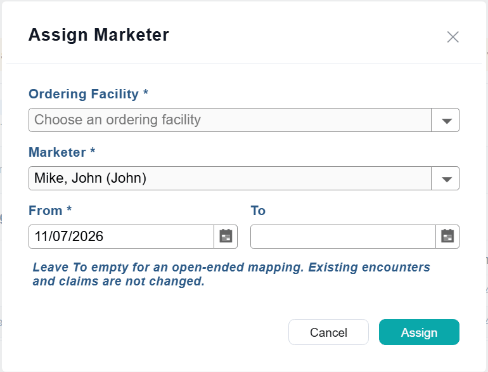
| Field | What to enter |
|---|---|
| Ordering Facility * | the facility |
| Marketer * | the marketer |
| From * | the first day the marketer has it (MM/DD/YYYY) |
| To | the last day — leave empty for an open-ended mapping |
Example
Peachtree Pediatrics → Mike, John, From 11/04/2026, To empty. Orders from Peachtree Pediatrics dated 11/04/2026 or later now belong to John.
The dates can't overlap another marketer's mapping for the same facility: Peachtree Pediatrics already has a marketer on those dates: … To hand it to another marketer, use Reassign. — use Hand over instead. If you pick a facility that has a marketer today, the box turns into Reassign Ordering Facility by itself.
Hand over, end or remove
Each mapping row has four actions:
| Action | Use it when | What happens |
|---|---|---|
| ✏️ Edit dates | a date was entered wrong | changes From / To; may not overlap another mapping |
| 📅 End mapping | the marketer stops looking after the facility and nobody takes over | asks for the Last day; after it the facility has no marketer |
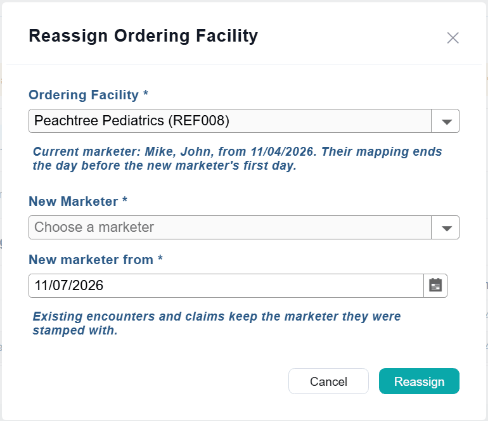
| ⇄ Hand over | another marketer takes the facility over from a date | the current marketer's mapping ends the day before; the new one starts open-ended |
| 🗑 Remove (entered by mistake) | the mapping should never have existed | the mapping is deleted from the history. To stop a mapping, use End mapping instead |
Example
Peachtree Pediatrics is John's from 11/04/2026. Hand over to Test, Beta from 01/01/2027: John's mapping now ends 12/31/2026, Beta's starts 01/01/2027 with no end. Orders already saved keep the marketer they had.
Hand over follows the date you pick
The box looks at who has the facility on the New marketer from date. If someone has it on that date, it is a Reassign: their mapping ends the day before. If nobody has it on that date (for example, the current mapping ends before it), the box switches to a plain Assign Marketer as soon as you change the date, and back again if you change it back. The new marketer's first day must be after the start of the mapping it replaces. To change a past or future mapping's dates, use Edit dates.
By facility
By facility lists every active ordering facility with its marketer today, the date it started (Since) and any change already booked (Next change, e.g. Mike, John from 01/01/2027).
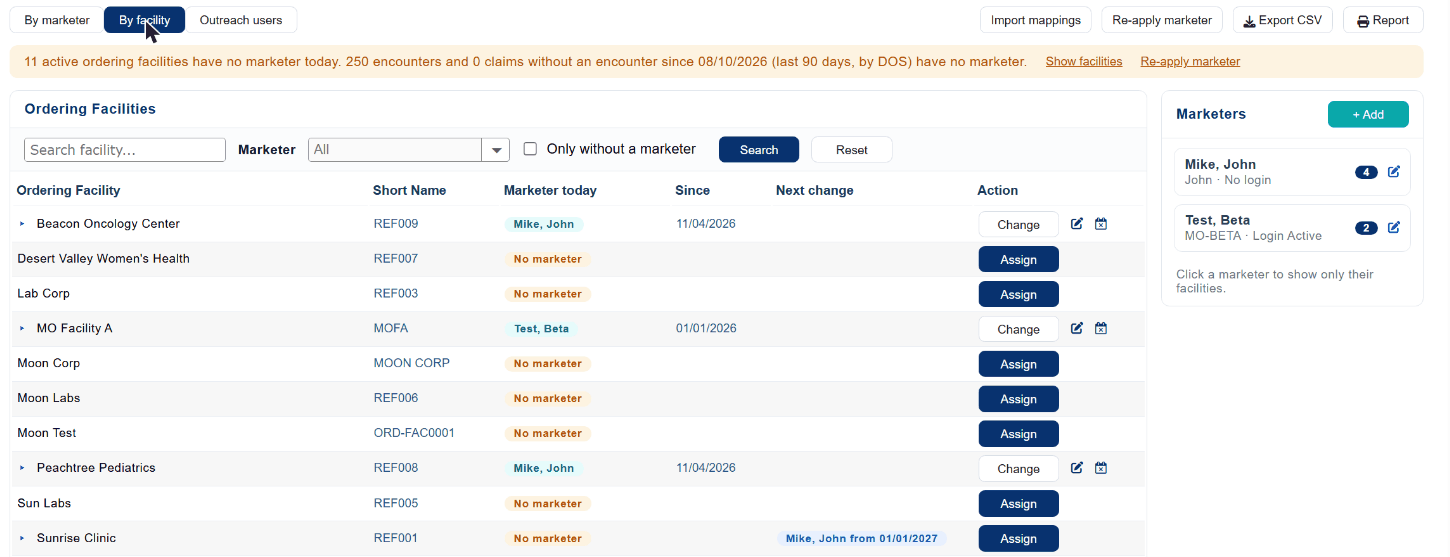
- Search facility... matches the name or short name; Marketer shows only one marketer's facilities (clicking a marketer on the right does the same). Click Search; Reset clears the filters.
- Click ▸ beside a facility to see its history — every marketer it had, with dates and status (Current, Past, Future).

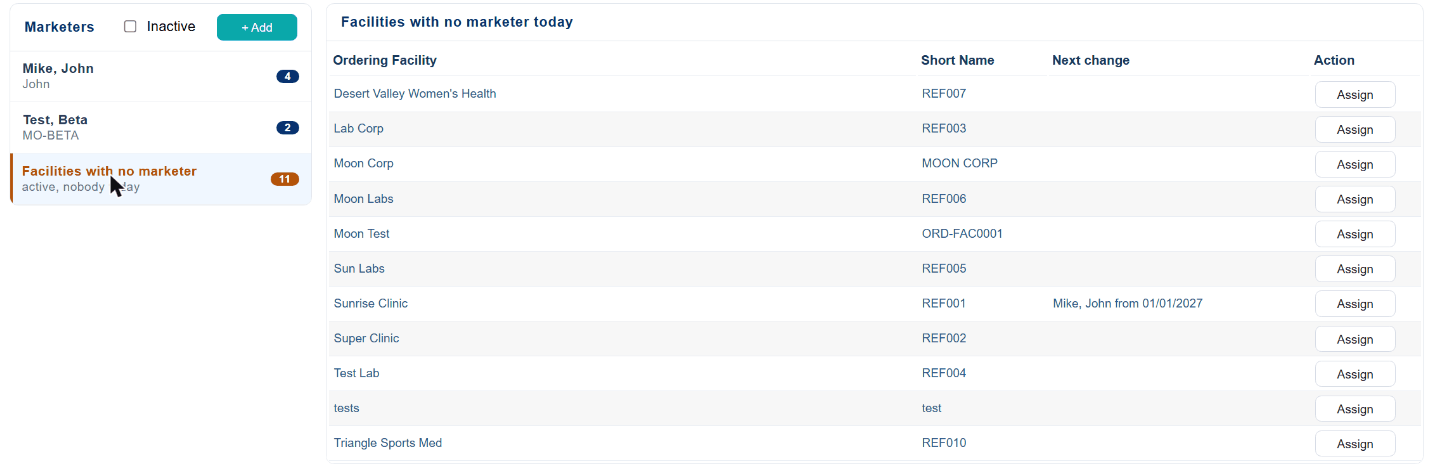
On By marketer, the amber Facilities with no marketer card at the bottom of the list shows every active facility nobody has today, each with Assign:
The count on a marketer
The number beside each marketer counts their facilities today and booked for later. The list under them shows only today's when Current only is ticked, so it can be shorter — untick Current only to see them all.
The amber banner
Across the top of every layout, an amber line counts what has no marketer:
11 active ordering facilities have no marketer today. 250 encounters and 0 claims without an encounter since 08/10/2026 (last 90 days, by DOS) have no marketer.
- Show facilities opens By facility with Only without a marketer ticked.
- Re-apply marketer opens Re-apply marketer for every facility.
Orders with no ordering facility at all are counted too — they can never get a marketer until an ordering facility is entered on them.
Re-apply marketer
Use it after setting up or correcting mappings, so orders already saved get the right marketer. It works the marketer out again from the current mappings, the same way as for a new order.
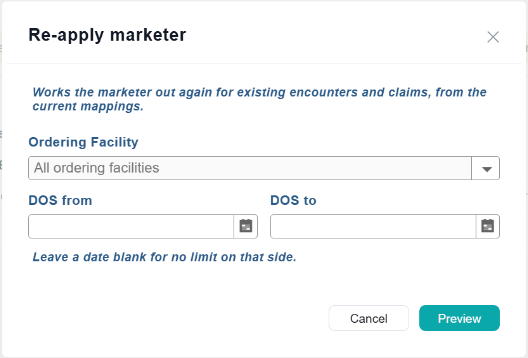
- Click Re-apply marketer (top right, or in the banner) — or answer Yes when the tab asks after a mapping change.
- Optionally pick an Ordering Facility and DOS from / DOS to (blank = no limit).
- Click Preview. Nothing is saved yet. It shows Encounters: X of Y will change (N to Mike, John, …) and the same for claims, or Nothing to change.
- Click Apply to save. One Marketer Re-applied entry goes to the Event Log.
The tab reloads after Apply, so the amber banner and the lists show the new counts at once.
Import mappings from a CSV file
For many facilities at once, use Import mappings. The file has four columns, in this order:
| Column | Example |
|---|---|
| Ordering Facility short name | REF008 |
| Marketer short name | MK01 |
| From date (MM/DD/YYYY) | 01/01/2027 |
| To date (blank = no end) |
A heading line is allowed. Short names are matched ignoring capitals.
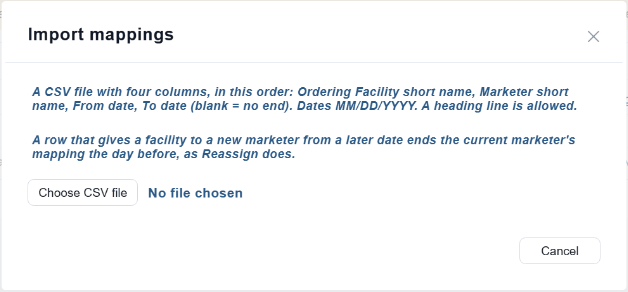
- Click Import mappings, then Choose CSV file (under 1 MB, at most 5,000 rows).
- Click Check. Nothing is saved. You see either N rows read: X mappings to add, Y existing mappings to end the day before, or every row with a problem, e.g. Row 3: Marketer MK09 was not found.
- If the check is clean, click Import. Every row is saved, or none — one bad row stops the whole file.
- The tab offers to re-apply the marketer to existing orders.
Example — a hand-over in a file
Ordering Facility,Marketer,From,To
REF008,MK01,01/01/2027,
REF008,MK02,07/01/2027,
First line
The first line is a heading only when its From cell has words in it (such as From). A first row whose From date is blank or mistyped is read as data and gets its own message, for example Row 1: the From date 13/45/2026 is not a date (MM/DD/YYYY).
Export and Report
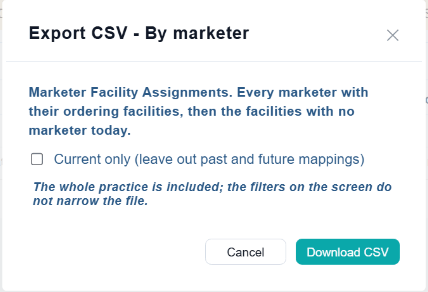
Export CSV and Report (PDF) list the whole practice — the filters on the screen don't narrow them. On By marketer you get Marketer Facility Assignments (each marketer with their facilities, then the facilities with no marketer today); on By facility, Ordering Facility Marketers (each facility with its marketer today and its history). Tick Current only to leave out past and future mappings.
Common problems
| You see | Why | What to do |
|---|---|---|
| … already has a marketer on those dates | the dates overlap another marketer's mapping | use Hand over, or Edit dates / End mapping on the other one first |
| The new marketer's first day must be after … | the hand-over date is before the current mapping starts | pick a later date, or Edit dates / remove the current mapping |
| A new mapping doesn't show on old orders | saving a mapping never changes saved orders | Re-apply marketer |
| Row N: Ordering Facility short name X matches 2 active ordering facilities | two active facilities share a short name | give each one its own short name in Master Setup |
| Row N: … overlaps … | the row clashes with an existing mapping or another row | fix the dates, or end the existing mapping first |