Claim Form Setup
What this is for
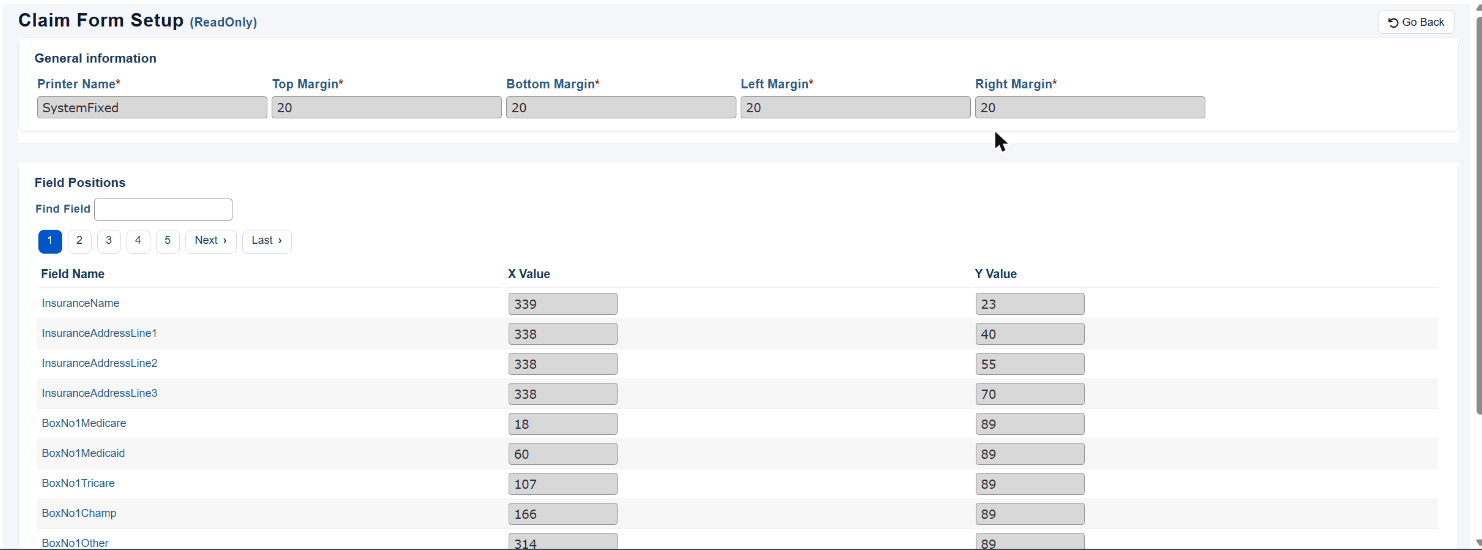
When claims are printed on red pre-printed CMS-1500 forms, every printer puts the text in a slightly different place. Claim Form Setup holds a layout per printer — page margins and the position of every field — so the text lands in the boxes.
It does not change what prints; that is set per payer in Paper Claim Settings.
The list

SystemFixed is the standard layout every practice has. It opens read-only. To adjust it for a printer, make a copy.
Steps: set up a layout for your printer
- Open SystemFixed (the eye icon) and click Make Copy of this Layout. Give the copy your printer's name.
- In the copy, click Print Sample Claim and print it on a red form.
- If everything is shifted the same way, change the Top, Bottom, Left or Right Margin. If only some boxes are off, find them under Field Positions (Find Field) and change their X Value (across) or Y Value (down).
- Save, print the sample again, and repeat until it lines up.
- Click Make this Layout as My Default.
Example
The sample prints everything about 3 mm too low. Reduce Top Margin from 20 to 12 and print again. If only one box is off to the left, find that field under Field Positions and raise its X Value a little.
When printing claims, the layout is chosen as the Printer. Plain-paper PDF claims do not need any of this.
Common problems
| You see | Why | What to do |
|---|---|---|
| This form date is not saved. Please save and continue. | Print or copy before saving. | Save first. |
| A claim form with the printer name 'X' already exists. | The name is taken. | Choose another. |
| Invalid Printer. No such printer available. | No layout exists for your practice. | Ask your administrator. |