Patient Statements
What this is for
A patient statement tells a patient what they owe. eClaim Pilot prints them in batches: pick the claims, put them in the queue, generate the batch, send it, and mark it mailed.
| Step | Screen (Patient → Patient Statement) | What you do |
|---|---|---|
| 1 | Manager | find claims the patient owes on, and add them to the queue |
| 2 | Queue | check the queue and Generate Patient Statement |
| 3 | Batch | download the batch, send it, then Mark as Mailed |
| 4 | Files | find one patient's statement from a mailed batch |
What prints on the statement — address lines, message, logo, images — is set in Statement Settings.
Mark as Mailed matters
A statement only counts as sent when its batch is Marked as Mailed: that raises each claim's statement Count and sets its last statement date. The Alert Center uses these — Self-pay, no statement sent leaves the list, and Self-pay, no payment after statement starts counting from that date (Alert Center settings).
Manager
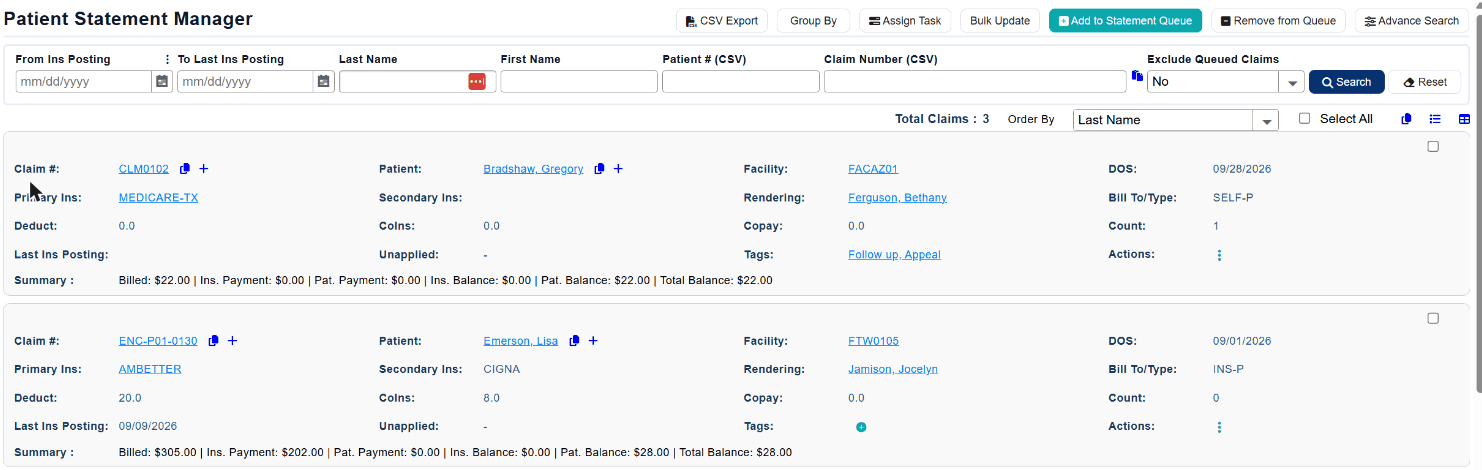
Patient Statement Manager lists every claim with a patient balance (and a balance left on the claim). Search by insurance posting dates, name, Patient #, Claim Number, or Exclude Queued Claims = Yes to hide claims already queued. Advance Search adds dates, amounts, payers, providers, tags and Statement Count Range — e.g. equal To 0 for claims never sent a statement.
- Search, then tick the claims — or Select All (up to 2000).
- Click Add to Statement Queue and confirm. N claim(s) added to the statement queue.
Remove from Queue takes ticked claims out again. ⋮ → Claim Statement View previews one claim's statement.
Example
Every month you send statements to patients who owe after insurance and have not had one in 30 days. Advance Search: Pat Balance greater than 0, Last Ins Posting before 30 days ago. Search, Select All, Add to Statement Queue.
From the Alert Center, Send statements opens the Manager already filtered to self-pay claims never sent a statement (Patient Statements - Never Sent). Reset clears that filter.
Queue

The Queue shows the claims waiting for the next batch. Remove any that should not go, then click Generate Patient Statement and fill in:
| Field | What to choose |
|---|---|
| New Statement Date | the date of the statements — today by default |
| Output format | System Statement Template (printable PDF), CSV File (Claim Level), CSV File (Line Item Level) or JSON File — for a mailing company that prints from data |
| Statement Layout | for PDF: Premium Patient Statement (default), Enhanced Claim, Claim Summary, Service Detail, Account Activity or Procedure Activity Statement |
| Print Option | Group By Patient (one statement per patient, all their claims) or By Claim (one per claim) |
| Batch Name | required — e.g. STMT-2026-10 |
Click Ok. Every claim in the queue goes into the batch (ticks are ignored), and it is made in the background — Check the Batch screen for status. Claims leave the queue as their statement is made.
Batch

Click Refresh to see progress. Status:
| Status | Meaning |
|---|---|
| Pending, Running | being made |
| Ready | done — download, send and mark mailed |
| Partial | some statements failed — see View Error; the good ones can be sent and marked mailed |
| Failed | none made — see View Error and the log |
Actions on a batch:
- Download Statement File — one file for the whole batch: all the PDFs merged, or one CSV / JSON.
- Upload to mailing company — sends that same file to the mailing company's SFTP set up in Statement Settings, for a Ready or Partial batch. Point at the icon to see the last upload (when, who, or why it failed). Uploading again sends the file again. It does not mark the batch mailed.
- Download Log File, View Error.
- Mark as Mailed — once the statements are printed and posted (or handed to the mailing company). Only a Ready or Partial batch that is not already mailed. In a Partial batch only the statements that were made are counted; the failed claims are not.
- Delete Batch — only before it is mailed. The claims do not go back into the queue — add them again from the Manager.
Partial batches
Send the good statements and Mark as Mailed: their claims are counted as sent. The failed claims are not - fix them (see View Error) and send them in a new batch.
Example
Batch STMT-2026-10 shows Ready, 214 statements. Download Statement File, print the PDF and mail the letters (or Upload to mailing company), then Mark as Mailed. Each claim's Count goes up by 1 and its last statement date becomes the batch's Statement Date.
Files

Files lists the individual statements from mailed batches — search by patient, **Patient
, Claim # or batch, and Download Statement File** for one patient, e.g. to re-send it.
One claim's statement
On a claim, the Claim Statement tab previews that claim's statement: choose the Statement Layout and click Generate. Mark as Mailed there records a single statement as sent (Count +1, last statement date today). Click it only once — each click counts another statement.
Good to know
- Statements go to every claim with a patient balance that you queue — there is no minimum balance or hold rule; leave out what should not go.
- The statements print the New Statement Date you chose, and the same date is recorded when the batch is marked mailed. A single claim's statement preview prints today's date.
- Nothing goes to the mailing company until you click Upload to mailing company on the batch.
Common problems
| You see | Why | What to do |
|---|---|---|
| The Statement Queue is currently empty. | Nothing queued. | Add claims from the Manager. |
| Enter batch Name. | No batch name. | Type one. |
| Statement batch is not ready yet. | Still running, or Failed. | Refresh; fix failures. |
| This batch has already been marked as mailed and cannot be deleted. | It was sent. | Nothing to do. |
| No mailing company connection is set up. | Statement Settings has no SFTP address. | Fill it in, Save, TestConnection. |
| Upload to the mailing company failed: ... | The server refused the login, the folder, or could not be reached. | Check the details with TestConnection in Statement Settings, then upload again. |
| Files screen shows nothing for a batch | Files lists mailed batches only. | Mark the batch mailed, or download from Batch. |
| Only 2000 claims can be updated at a time. | Too many selected. | Queue in parts. |