Import Job Status
What this is for
Import Job Status lists every import: when it ran, who scheduled it, how many rows it read, how many went in and how many failed. Open it from Utilities → Data Import → Import Job Status, or from the Import Job Status button on Schedule Import Job.
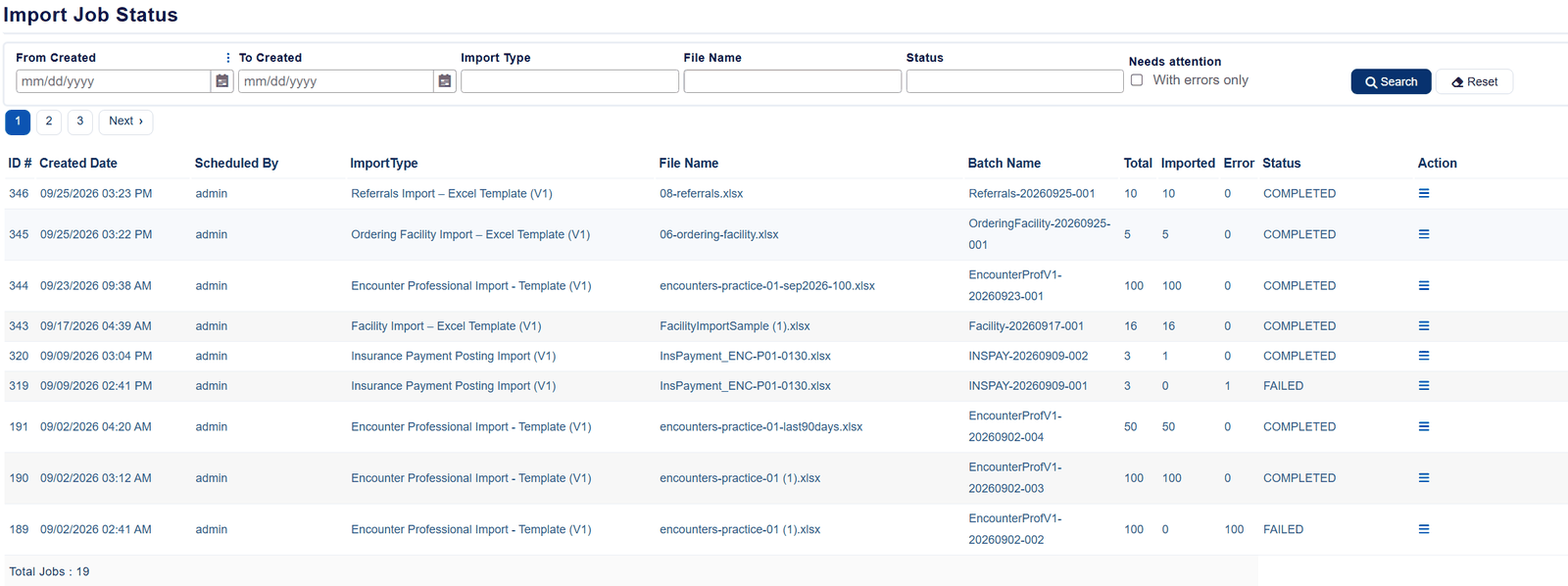
Reading a job
| Column | Means |
|---|---|
| ID # | The job's number. |
| Created Date, Scheduled By | When, and by whom. |
| ImportType, File Name, Batch Name | What was imported, from which file, under which batch name. |
| Total | Rows in the file. |
| Imported | Rows that went in. |
| Error | Rows that were refused. |
| Status | Where the job is — see below. |
| Status | Means |
|---|---|
| QUEUED | Saved, not started yet. |
| RUNNING | Being imported now. |
| COMPLETED | Finished. Check the Error count — a completed job can still have refused rows. |
| FAILED | Nothing usable went in: every row failed, or the file was refused as a whole. |
To find the imports that need attention, tick Needs attention: With errors only and click Search — it lists failed jobs and completed jobs with refused rows.
Downloads and details
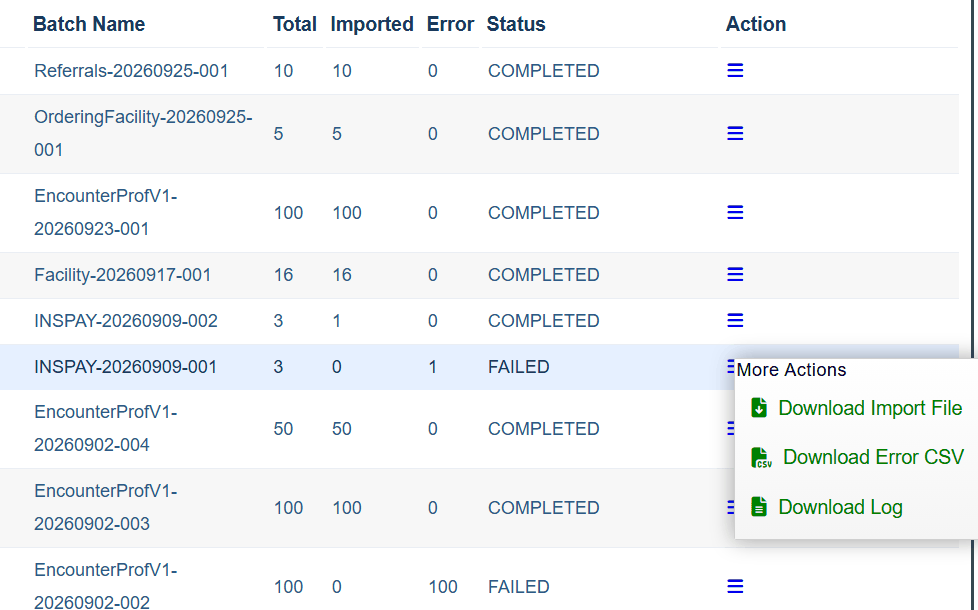
| Action | Gives you |
|---|---|
| Download Import File | The file that was uploaded. |
| Download Error CSV | One line per problem: RowNumber, ColumnName, Message. |
| Download Failed Rows | Only the refused rows, in the same layout and format as your upload, ready to fix and import again. Shown when the type produces one. |
| Download Log | The job's technical log, for support. |
| Go to Details | The records this job created or updated — for example Manage Patient showing only records created by import job N. Shown when the type has a list to go to. |
Fixing the rows that failed
- Download Failed Rows — or, if it is not offered, Error CSV alongside your original file.
- Correct each row as its message says.
- Import the corrected rows as a new job — only those rows, so nothing is loaded twice.
Download Failed Rows is offered for the patient imports (demographics, with insurance, and patient + payer + primary insurance), billing providers, and the professional encounter and claim imports.
Common problems
| You see | Why | What to do |
|---|---|---|
| COMPLETED but the Error count is not 0 | Some rows were refused while importing. | Download Error CSV or Failed Rows, fix them, and import those rows again. |
| A job stays at QUEUED or RUNNING for a long time | It did not start, or it stopped. | Ask support before scheduling the same file again. |
| File not available for this record. | That file was not produced for this job. | Use the other downloads. |
| Details are not available for this import type. | This type has no list to go to. | Find the records on their own screen. |