Claim Bulk Update
What this is for
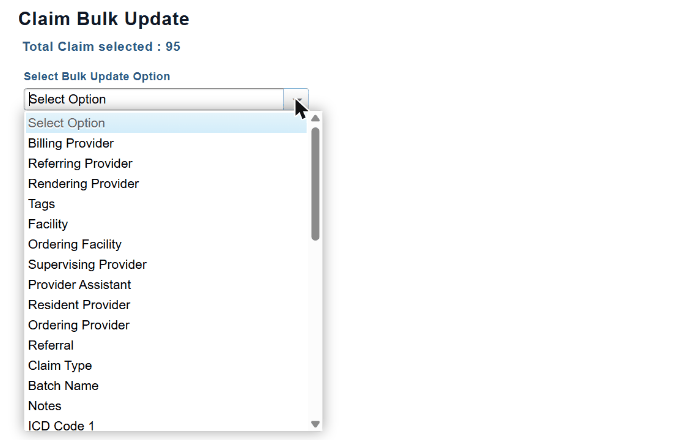
Claim Bulk Update changes one thing — a provider, a diagnosis, a procedure, the price, the queue, a hold — on every claim your search lists, in one step.
Before you start
- Open Claims → Manage Claim, search for exactly the claims you want, and click Bulk Update. It needs the Can Bulk Update Claim right — every option except Notes, Tags and the holds is refused without it. The smaller Bulk Update on the queues and follow-up lists offers only Notes and Tags, and does not need the right.
- It changes every claim the search lists — all pages, not only the one on screen. Up to 300 at a time.
- Sent and paid claims are not protected. Bulk Update does not skip claims already billed. A change to a claim already sent is not sent to the payer by itself — re-queue and resend it if the payer needs the correction.
- Options that change procedures or prices skip a claim that has a payment, adjustment or other transaction besides its charges — the other claims are still updated, and the skipped ones are in the Skip file with the reason.
- There is no "are you sure?" — the change is made when you click Bulk Update (Delete is reviewed first).
Bulk Update on other screens
The transmission queues, follow-up lists, payment lists and Patient Statement Manager have a smaller Bulk Update with only Tags and Notes — there it works on the claims you tick (queues) or the claims listed.
Steps
- Choose the option in Select Bulk Update Option.
- For value options, choose Update to New Value or Remove Value.
- Type the Reason to Update (required, up to 100 characters).
- Fill in the option's fields.
- Optionally choose Update Tag for Affected Claims — added to every claim that was changed.
- Read Important Information, then click Bulk Update.
- The result shows Updated and Skipped; Download Updated Claims and Download Skipped Claims give the details (the skipped file has a Skip Reason). Go to Applied (n) and Go to Skipped (n) open Manage Claim in a new tab on exactly those claims, so you can work them straight away.
Providers, facility, referral, claim type, batch name
Billing Provider, Referring Provider, Rendering Provider, Supervising Provider, Provider Assistant, Resident Provider, Ordering Provider, Facility, Ordering Facility, Referral Source, Claim Type, Batch Name
- Update to New Value sets it on every claim; Remove Value clears it. Claims that already have the value are skipped (No change detected).
- The claims are not repriced — if the fee depends on the provider or facility, run Reprice CPT from Fee Table afterwards.
- Remove Value will even clear a Billing or Rendering Provider, which a claim needs to be sent.
Example
Last week's claims for the new satellite clinic were entered under the main facility. Search them, choose Facility, Update to New Value, pick the satellite clinic, reason Wrong facility. Then run Place Of Service if the POS differs, and Reprice CPT from Fee Table if the clinic has its own fees.
Tags
- Update to New Value adds the tags; tags already on the claims stay.
- Remove Value removes all tags from the claims.
Notes
Adds a follow-up note to every claim: Follow up Notes (required), FollowUp Category (required — General Claim, Claim Denial or Claim Aging), and optionally FollowUp Type and FollowUp Status, which also update the claim's follow-up summary. Existing notes are not changed. (Notes for 999 / 277CA rejections are added from the claim itself.)
Example
You called Aetna about 30 unpaid claims: search them, choose Notes, note Called Aetna 09/30 - in process, recheck 10/14, category Claim Aging, status Follow up.
Put On Hold, Release Hold
Put On Hold keeps the claims out of the transmission queues and adds the note On Hold : your text; Release Hold releases them (Release Hold : …). Follow up Notes is required. Needs Can Put Claim On Hold / Can Release Claim On Hold — without the right the option is not in the list. See Put a claim on hold.
Place Of Service
Sets the Place Of Service on the claims and all their lines. Not repriced.
Diagnosis codes
ICD Code 1 … ICD Code 12
Puts the code into that one position on every claim and on the lines that point at that position. Line pointers do not change. The code must be in ICD Codes.
Find ICD Code and Replace with New
Replaces a code in the same position on the claim and its lines. ICD Position: Any Position or a specific one; with Any Position, a claim that has the code twice is skipped.
Example
J06.9 should have been J02.9 on a batch of sore-throat visits: Find ICD Code J06.9,
Replace With ICD Code J02.9. Claims without J06.9 are skipped as ICD code J06.9 not
found.
Find ICD Code and Remove
Removes a code; the codes after it move up one position. Each line's diagnosis pointers
(ICDs) follow, so every line still points at the same diagnoses, in the same order: removing
position 2 turns a line's 1,3 into 1,2.
A claim with a line that points only at the code being removed is skipped and left unchanged (Line 36415 points only at ICD I10 — skipped), because the line would be left with no diagnosis. Point that line at another diagnosis on the claim, then run it again.
Procedures and prices
These options change the claim's charges, then recalculate its balances. A claim that has a payment, adjustment or other non-charge transaction on the lines concerned is skipped and left unchanged — Claim CLM-1077 not changed: its 97530 line has payments or adjustments. (for Reprice CPT from Fee Table: … not changed: it has payments or adjustments.). The other claims are updated; the skipped ones are in the Skip file.
Apply to ALL matching line items in each claim (ticked by default) changes every matching line; unticked, only the first.
Reprice CPT from Fee Table
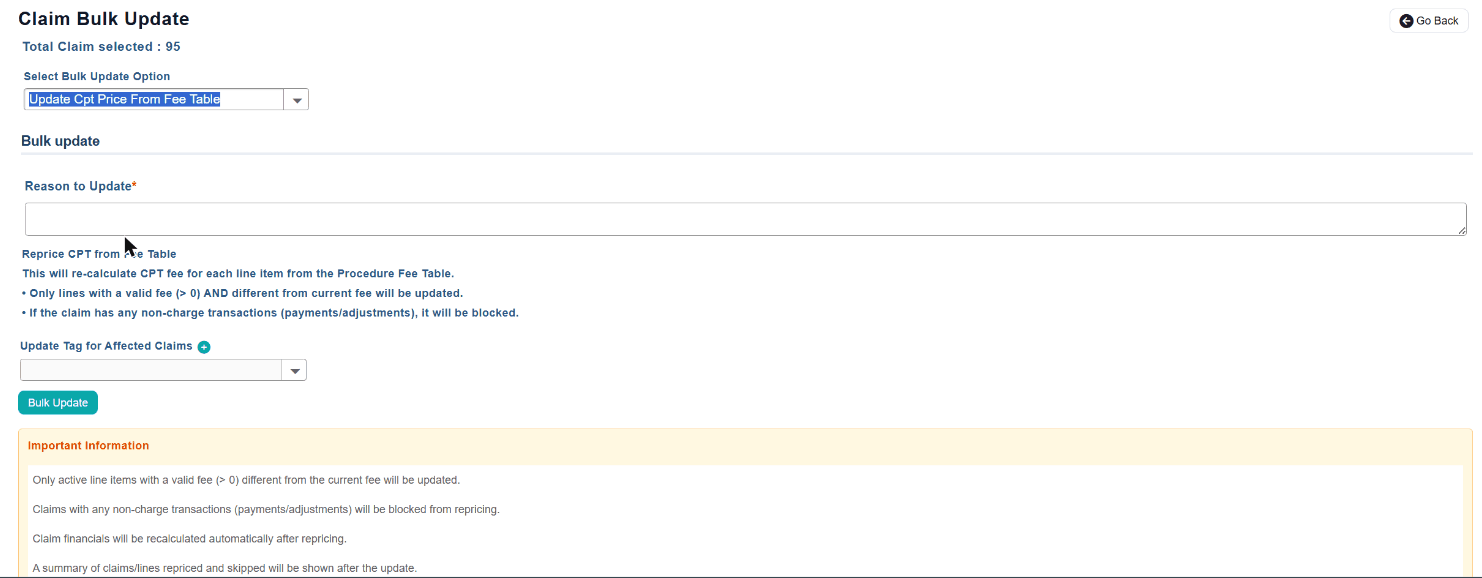
Reprices every line from Procedure codes as it would be priced today — standard fee or the best Fee List row for the claim's primary payer group, modifiers, providers and facility. Only lines whose fee is found (above $0) and differs are changed. The result shows claims and lines repriced and skipped.
Example
The fee for 99213 went up from $120 to $135 on 10/01, and 40 claims dated October were already created at $120. Search DOS from 10/01, unpaid, and run Reprice CPT from Fee Table: Claims repriced: 40 … Lines updated: 40.
Find Procedure Update Mod Units
Changes modifiers and/or units on matching lines — only the fields you fill in.
- Units only: the line keeps its own unit price; billed becomes new units × that price. It is not repriced from the fee schedule.
- A modifier changed: the line is repriced from the fee schedule, because fees can depend on the modifier.
Example
97110 was billed with 1 unit instead of 3 at $50.00: Find Procedure 97110, New Units
3. The line becomes 3 × $50.00 = $150.00, even if the fee schedule now says something else.
Find Procedure Remove Modifiers
Clears Modifier 1 and/or Modifier 2 on matching lines; the price may change because fees can depend on modifiers.
Find Procedure Replace With New
Changes the code (and modifiers/units if given) on matching lines, reprices them from the new code, and gives them the new code's description. Replace With must be a code in Procedure codes — otherwise nothing runs: Invalid procedure code. It does not exist in the master. A claim where the new code has no price is left unchanged and listed in the skipped claims with Claim … not changed: no price found for procedure … — set the price, then run Replace again.
Example
99213 should have been 99214: Find Procedure 99213, Replace With 99214.
Find Procedure Remove From Claim
Removes matching lines (kept in history), removes their charges and recalculates the claim. A claim that would be left with no procedure is skipped — Claim … not changed: 97530 is its only procedure, and a claim must keep at least one.
Add To Transmission
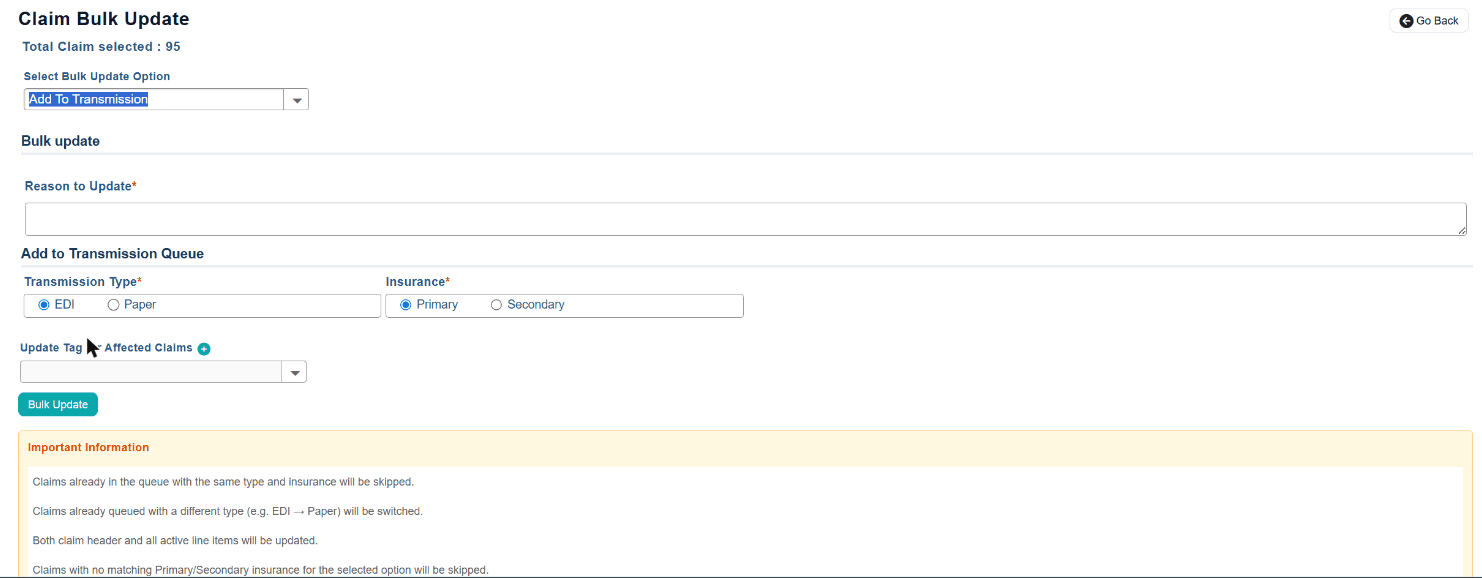
Queues the claims to send — Transmission Type EDI or Paper, Insurance Primary or Secondary. Claims queued the other way are switched. Three kinds of claim are skipped, each with its own reason in the Skip file: No Secondary insurance on the claim. (fix the insurance, then run it again), Claim is on hold. Release the hold before adding it to a queue. (release it first) and Already in the EDI queue for its Secondary insurance. (nothing to do). The Reason is stored as the queue note. See Sending claims.
Example
Primary paid on 25 claims and the rest goes to the secondary: search them, choose Add To Transmission, EDI, Secondary, reason Primary paid - bill secondary.
Recalculate Financials
Recomputes each claim's charges, payments, adjustments and balances from its existing transactions — a repair tool for balances that look wrong. Nothing is deleted, but balances and patient responsibility may change. Result: Recalculated: X, Failed: Y.
Delete
It needs the Can Delete Claim right; without it, Delete is not in the option list.
- Choose Delete, type the reason, click Review Impact.
- Total | Valid | Invalid is shown; invalid claims are listed — Claim has transactions other than Charges. Delete is not allowed., Claim is on hold. Release the hold before deleting. or Do not have access to delete the claim. The Excel icon exports the list.
- Click Apply Delete. The claims are marked deleted with your reason, their charges reversed and tags removed, and their encounters become unbilled again — ready to create new claims.
Example
Claims were created from the wrong encounters' batch: search the batch, Delete, reason Created in error, Review Impact, Apply Delete. Fix the encounters and create the claims again from Create Claim by Encounter.
Common problems
| You see | Why | What to do |
|---|---|---|
| … only 300 claims is the limit for bulk action. | The search lists more than 300. | Narrow it and run in parts. |
| Skipped: Claim … not changed: … has payments or adjustments. | That claim has a payment or adjustment; it was left unchanged, the rest were updated. | Change it by hand, or reverse the payment first. |
| Skipped: Claim … not changed: X is its only procedure … | Remove would leave that claim with no lines. | Leave it, or delete the claim. |
| Please enter the reason to update the selected claims | No reason. | Type one. |
| Followup Category is required. | Notes needs a category. | Choose one. |
| Please select Transmission Type (EDI or Paper). | Add To Transmission needs a type. | Choose EDI or Paper. |
| Skipped: No change detected | The claims already have that value. | Nothing to do. |
| Skipped: No Primary / Secondary insurance on the claim. | Add To Transmission: the claim has no insurance in that order. | Add the insurance to the claim, then run it again. |
| Skipped: Already in the EDI / Paper queue for its … insurance. | Add To Transmission: it is already queued that way. | Nothing to do. |
| Skipped: Claim is on hold. Release the hold before adding it to a queue. | Add To Transmission: a held claim cannot be sent. | Release the hold, then run it again. |
| An error, then a second error | The request was refused; the second message is a follow-on. | Read the first message. |