Manage Encounter
What this is for
Manage Encounter is where encounters (visits) are found, added, checked and corrected before they become claims. Practices that work encounter first spend most of their time here — see Two ways of working. When an encounter is ready, its claim is made in Create Claim by Encounter.
Before you start
- Open it from the menu: Encounter → Manage Encounter.
- It searches as soon as it opens and shows unbilled encounters — those with no claim yet — newest date of service first. Set Billed Option to Both or Billed to see the rest.
- Encounters on hold are listed too, with a red On hold badge.
- Buttons you do not have the right for are not shown — for example Add New Encounter, Bulk Update and Delete. Ask your administrator if you need one.
Steps: find an encounter and change it
- Fill in what you know in the search row — for example Last Name, From Dos / To Dos, or Encounter # (CSV) — and click Search.
- Click the Encounter #. The Encounter Summary opens in a new tab — a read-only view.
- On the summary, click Edit encounter (the pencil). The encounter opens in its own tab, named Encounter ID and a number.
- Make the change and click Save at the top right.
For a quick fix to codes, providers or the place of service, Quick Edit on the encounter card is faster — see Quick Edit below.
Steps: add a new encounter
- Click Add New Encounter and pick the patient.
- Fill in the General Information tab — insurance profile, dates, providers, diagnosis codes and procedure lines. It is laid out like the claim screen; see Enter or edit a claim.
- Click Save. The other tabs — CMS 1500 Form Fields (or UB4 Form Fields), Documents, Notes and Event Log — appear after the first save.
To start from an existing encounter instead, use Copy and create New Encounter on it.
The search row

| Field | What to enter |
|---|---|
| From Dos / To Dos | The date of service. The ⋮ beside it picks a range: Today, This Week, This Month, Last 3 Month and more. |
| Last Name, First Name | The patient's name. |
| Patient # (CSV), Encounter # (CSV) | One or more numbers, separated by commas. |
| Billed Option | UnBilled (the default), Billed or Both. |
| Billing Type | All, HCFA or UB. |
| Hold Status | Both, On Hold or Active. |
Reset puts every filter back to its default and searches again. Order By sorts the list — date of service, created date, encounter number or patient.
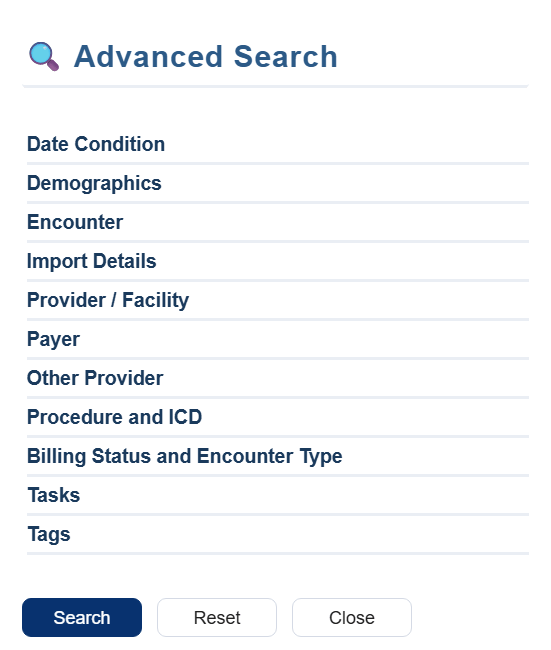
Advance Search opens every other filter, in sections: Date Condition, Demographics, Encounter, Import Details, Provider / Facility, Payer, Other Provider, Procedure and ICD, Billing Status and Encounter Type, Tasks and Tags. The [Any], [Empty] and [Exclude] options work as in Manage Claim.
Reading the results
Encounters show as cards at first; the icons beside Order By switch to a table. Total shows how many matched. Each card shows the encounter's Status — its billing status, such as NotReviewed — and the red On hold badge when it is on hold.

The icons on each card:
| Icon | What it does |
|---|---|
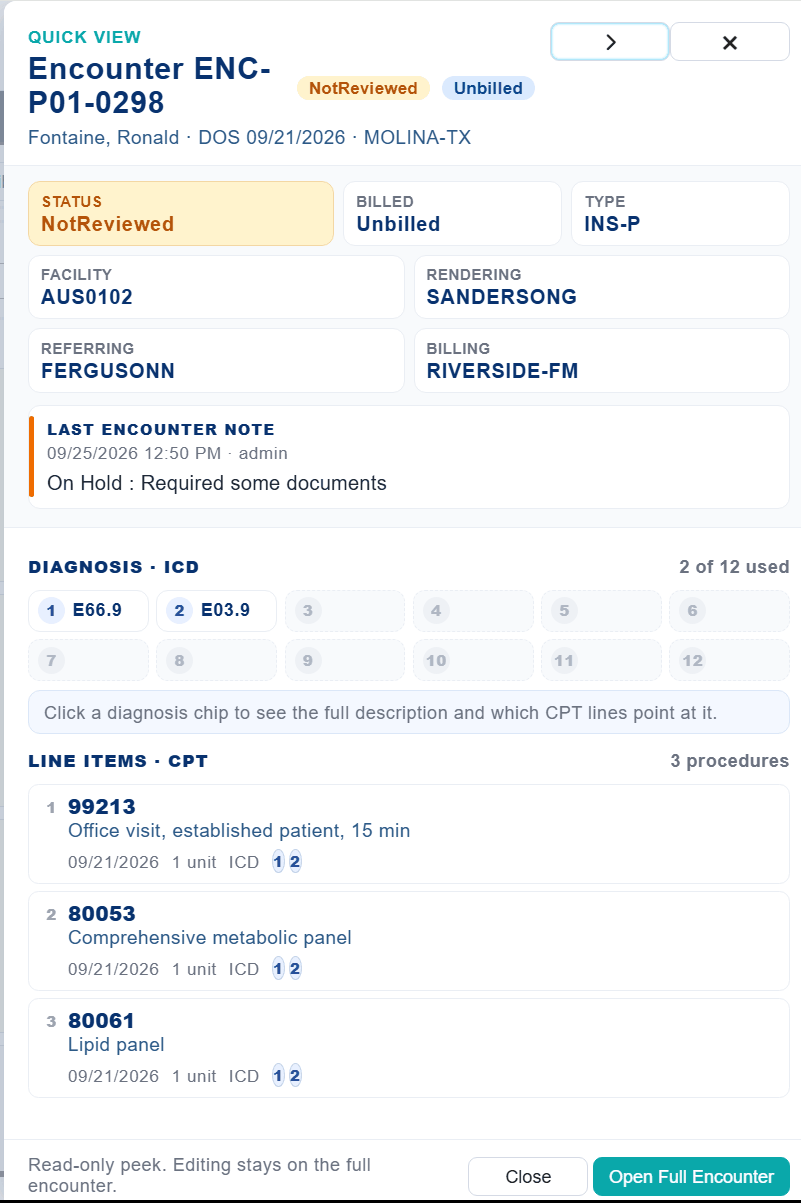
| Quick View — ICD & CPT | A read-only look at the encounter: status, providers, the last note, the diagnosis codes and the procedure lines. Click a diagnosis to see which lines point at it. Open Full Encounter opens its summary. |
| Quick Edit | Edits codes, providers and other details in a side panel — see below. |
| Open Encounter Summary | Same as clicking the Encounter #. |
| Notes | The encounter's notes. |
| Copy and create New Encounter | Starts a new encounter copied from this one. |
| Delete | Deletes an unbilled encounter that is not on hold, after two confirmations and your authorization password. |
| Event Log | Who changed what on the encounter. |
| Has Active Tasks | Shown only when the encounter has an open task; opens it. |
On a billed encounter the card hides Notes, Event Log and Delete; open its summary instead.
Quick Edit
Quick Edit opens a side panel titled Quick Edit - Encounter # with three tabs:
- ICD / Procedure — the diagnosis codes and the procedure lines, with Apply ICD, Add New Item and Remove All.
- Providers / Facility — facility, billing, rendering and referring provider, the other providers, referral source, ordering facility and tags.
- Other — Encounter #, Batch Name, Authorization #, Encounter Type and Place Of Service.
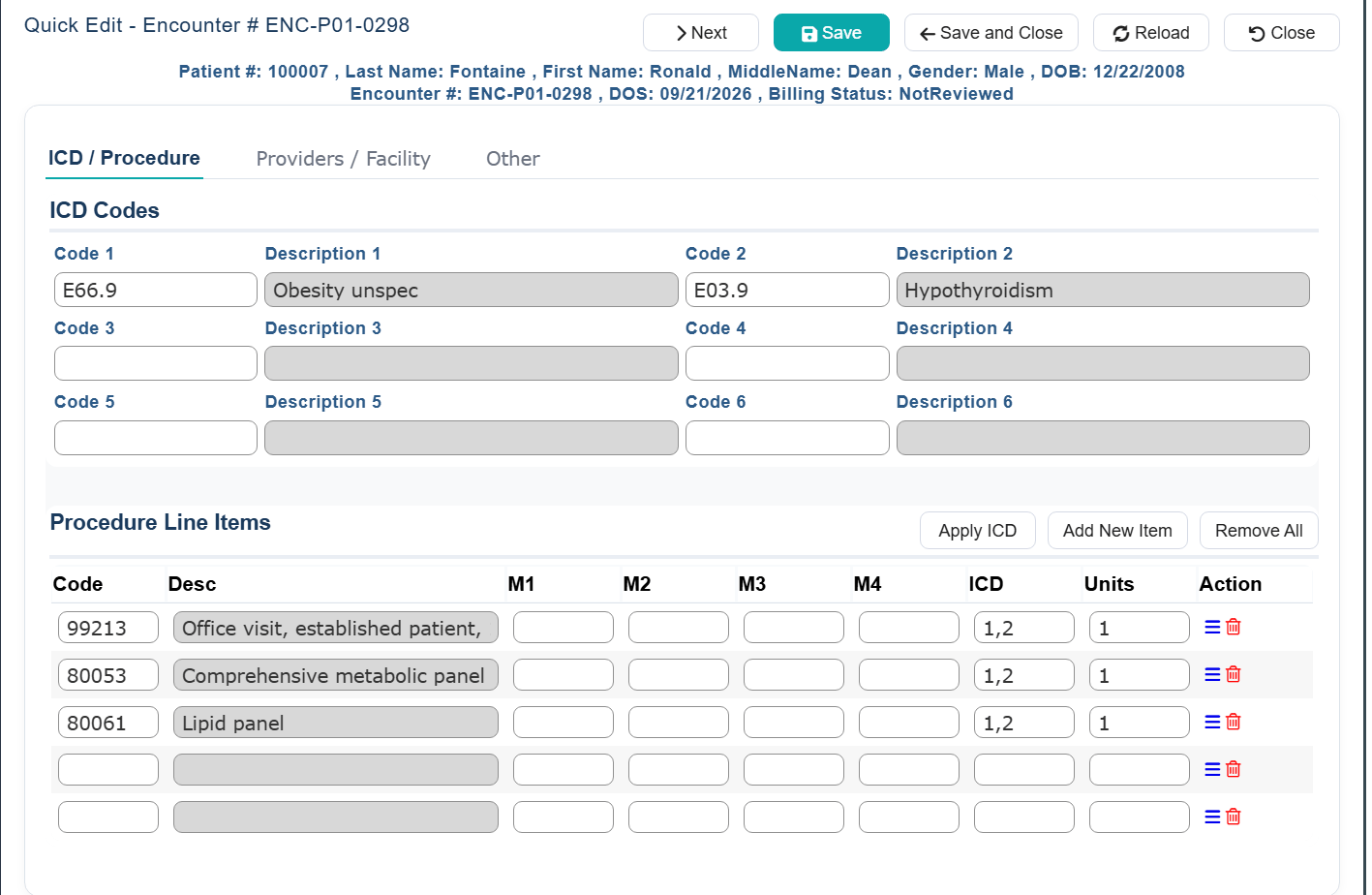
Save keeps the panel open; Save and Close closes it; Reload throws away unsaved changes; Next moves to the next encounter on the page.
Two things to know about Quick Edit
- It shows only diagnosis Code 1 to Code 6. For codes 7–12, open the full encounter.
- Close, or clicking outside the panel, closes it without warning — unsaved changes are lost. Click Save first.
Put an encounter on hold
A hold stops an encounter from being billed: it cannot become a claim until the hold is released, and it does not appear in Create Claim by Encounter.
- Open the encounter (Encounter #, then Edit encounter).
- Click Put On Hold at the top.
- Enter the Reason and Follow-up Notes — both are required — and click Put On Hold.
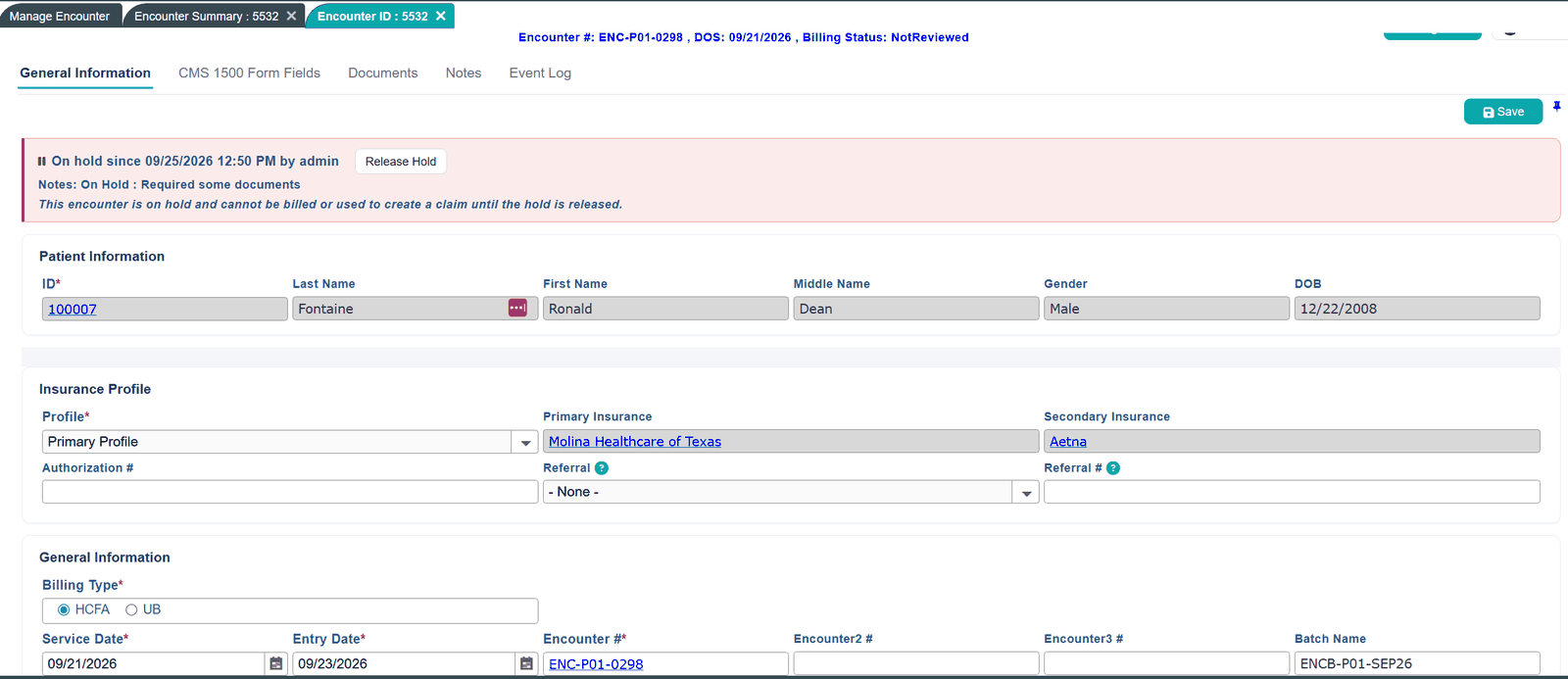
A red banner then shows On hold since … by …, the notes, and This encounter is on hold and cannot be billed or used to create a claim until the hold is released. To release it, click Release Hold on the banner and fill in the same two fields. Both buttons need their own right; ask your administrator if you do not see them.
Working on many encounters at once
These buttons act on every encounter that matches your current search, on every page — there are no check boxes. Narrow the search first.
| Button | What it does | Limit |
|---|---|---|
| Assign Task | Creates a task on each matching encounter. | 50 |
| Add to Eligibility Check Queue | Queues each one for an insurance eligibility check. | 50 |
| Bulk Update | Changes one thing on every matching encounter — see below. | 1000 |
| CSV Export | Downloads the encounters, one row each. | — |
| Line Items CSV | Downloads the procedure lines, one row per line. | — |
Bulk Update opens Encounter Bulk Update, showing how many encounters are selected:
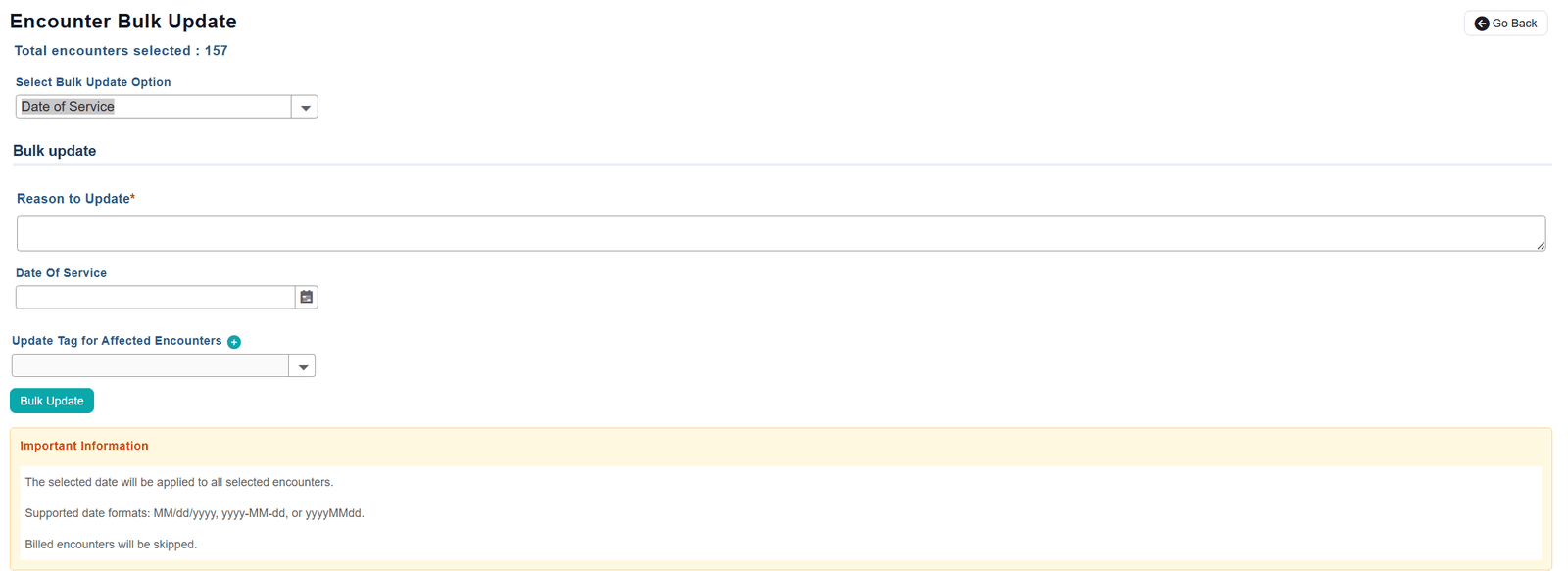
- Choose what to change in Select Bulk Update Option — a provider, facility, tags, billing status, encounter type, batch name, place of service, a date, a diagnosis code, a procedure (add, remove, replace, or change its modifiers and units), notes, put on hold or release hold, or delete.
- Enter the new value, and the Reason to Update — it is required.
- Optionally pick a tag in Update Tag for Affected Encounters, to find these encounters again.
- Click Bulk Update. For a delete, click Review Impact first, then Apply Delete.
The result shows how many were Updated and Skipped, with Download Updated Encounters and Download Skipped Encounters for the details. Read the Important Information box before you run it — it says what the change does, and billed encounters are always skipped.
Every option is explained, with an example, in Encounter Bulk Update.
No confirmation
Bulk Update runs as soon as you click it — there is no "are you sure?". Check the count at the top and your search before you click.
Good to know
- An encounter with a claim is not locked. It can still be edited from its summary, but the claim was made from the encounter as it was then and does not change with it. If the claim is wrong, correct the claim — see Enter or edit a claim.
- Go Back on Encounter Bulk Update returns to Manage Encounter with the default search, not yours.
Common problems
| You see | Why | What to do |
|---|---|---|
| An encounter you expect is missing | Billed Option is UnBilled, so billed ones are hidden — or another filter is set. | Set Billed Option to Both, or click Reset. |
| No Add New Encounter, Bulk Update, Delete, Put On Hold or Release Hold | Your role does not have that right. | Ask your administrator. |
| Billed Encounters cannot be Updated. Please Check Selected encounters and Continue. | The search includes encounters that already have a claim. | Set Billed Option to UnBilled and search again. |
| …only 1000 Encounters is the limit for bulk action. | The search found more than 1000. | Narrow the search — a shorter date range, for example. |
| Only up to 50 Encounters can be bulk assigned at once. | More than 50 match. | Narrow the search. |
| Encounter is already billed / linked with claim when deleting | An encounter with a claim cannot be deleted. | Leave it — or deal with the claim first. |
| Encounter is on hold. Release the hold before deleting. | A held encounter cannot be deleted. | Release Hold first, then delete. |
| Please save or reload before navigating. in Quick Edit | You moved to another encounter with unsaved changes. | Click Save or Reload first. |
| Changes in Quick Edit disappeared | The panel was closed without saving. | Reopen it, make the change again and click Save. |