Practice Settings
What this is for
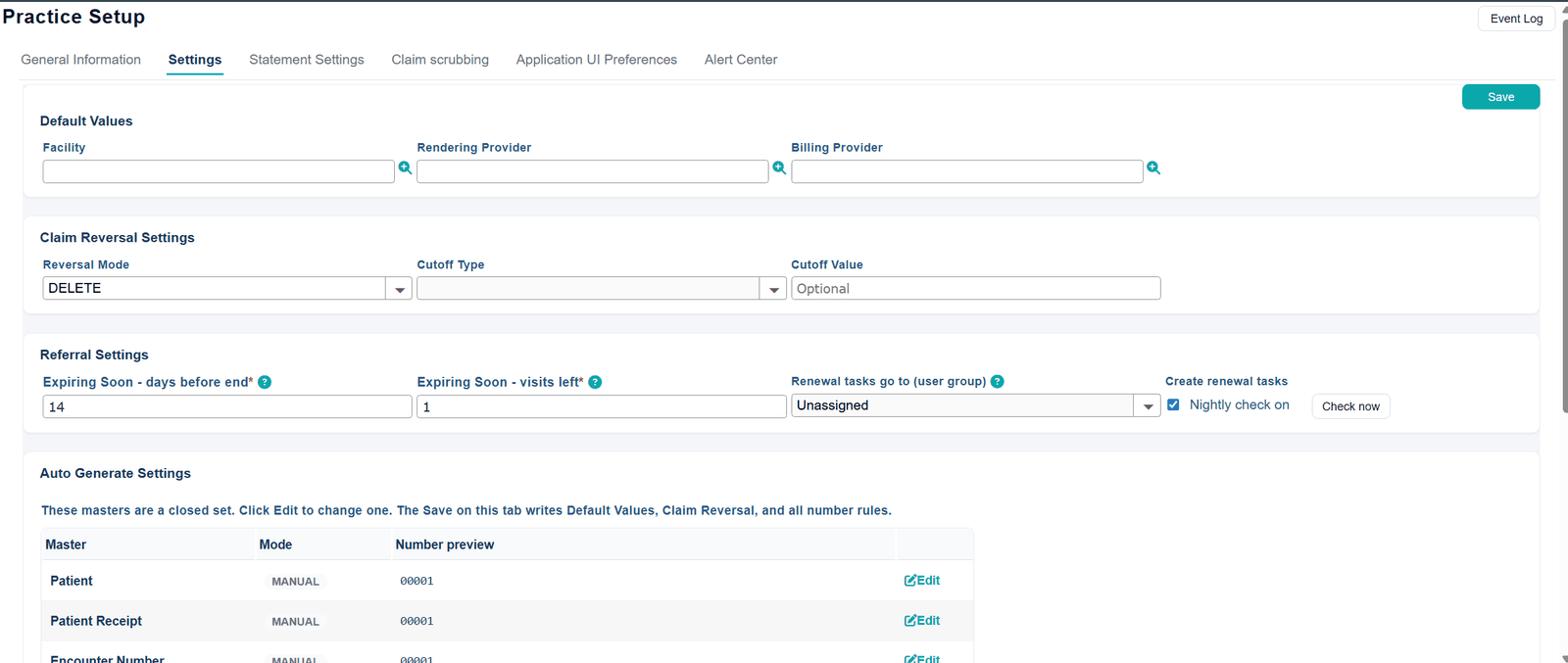
The Settings tab of Practice Setup holds the rules your practice works by: which providers and facility a new claim starts with, what happens when a posted payment is removed, when a referral counts as running out, and how patients, claims, encounters and other records are numbered.
Before you start
- Open it from the menu: Master Setup → Practice Setup, then the Settings tab.
- A change applies to records created afterwards. Existing patients, claims and encounters keep their numbers.
- Other people who are already logged in keep the old settings until they log in again.
Default Values
| Field | What it does |
|---|---|
| Facility | Filled in on every new claim and new encounter. |
| Rendering Provider | Filled in on every new claim and new encounter. |
| Billing Provider | Filled in on every new claim. |
Click the magnifying glass (or press F1) to pick one; Del clears it. All three are optional, and can still be changed on each claim.
Example
Most visits are at Main Clinic with Dr. Rao: set Facility to Main Clinic and Rendering Provider to Dr. Rao. Every new claim and encounter starts with them already chosen.
Claim Reversal Settings
This decides what happens when a posted transaction on a claim — a payment, adjustment or write-off — is removed.
| Reversal Mode | Cutoff | What happens |
|---|---|---|
| DELETE | — | The transaction is removed. This is the default for a new practice. |
| REVERSE | none | The transaction stays, and an offsetting entry is added, so the history shows both. |
| REVERSE | Days from Posting Date, value N | Posted within the last N days: removed. Older: reversed. |
| REVERSE | Day of Month (e.g., 5th), value N | Posted in an open month: removed. Otherwise: reversed. Last month stays open up to and including day N; after day N only this month is open. |
Example
You close each month on the 5th. Choose REVERSE, Day of Month, 5. On 03/12, removing a payment posted on 03/08 simply removes it — March is still open. Removing one posted on 02/20 adds a reversing entry, so February's closed figures are not changed.
On 03/03 (before the 5th) February is still open: removing a payment posted on 02/20 simply removes it.
A Cutoff Value is required once a Cutoff Type is chosen — Cutoff value is required when cutoff type is selected.
Closed through - a date that locks every month up to it. Once set:
- a payment, write-off, balance transfer, transaction or patient payment dated on or before it is refused - Posting Date 09/28/2026 is in a closed period (closed through 09/30/2026). Use a later date.
- removing or correcting a transaction dated on or before it always adds a reversing entry dated today, whatever the Reversal Mode, so a closed month's figures never change;
- an ERA dated into it is posted with today's date instead.
Leave it empty for no closed period. Move it forward when you close a month.
ERA Posting Settings
ERA Auto Posting - tick Post ERAs automatically to have each ERA (835) posted as soon as it arrives and is matched to your claims, with no click; the posting date is the day it is posted. Left off (the default), a biller posts each ERA with Post Payment in ERA payments. Either way, anything that could not be posted is listed in ERA Posting Alerts.
Referral Settings
| Field | Default | What it does |
|---|---|---|
| Expiring Soon - days before end | 14 | A referral shows Expiring Soon when its end date is this many days away or fewer. |
| Expiring Soon - visits left | 1 | …or when this many visits or fewer are left. |
| Renewal tasks go to (user group) | Unassigned | The user group that gets the Referral Renewal task. |
| Create renewal tasks — Nightly check on | on | Every night, a referral that is running out — Expiring Soon, Used Up, or Expired in the last 30 days — and is still needed becomes a Referral Renewal task. |
Check now runs the renewal check for this practice straight away; the details are on the Job Monitor.
Example
With 14 days and 1 visit, a referral that ends on 10/06 shows Expiring Soon from 09/22 — or earlier, as soon as only 1 of its visits is left. The same setting decides when it appears under Referrals expiring in the Alert Center.
Authorization Settings
The same four fields for prior authorizations:
| Field | Default | What it does |
|---|---|---|
| Expiring Soon - days before end | 14 | An authorization (or one of its services) shows Expiring Soon when its end date is this many days away or fewer. |
| Expiring Soon - % of the limit left | 20 | …or when this share of a whole-authorization limit, or less, is left. Per day / week / month limits and Dollars limits are not used for this. |
| Renewal tasks go to (user group) | Unassigned | The user group that gets the Authorization Renewal task. |
| Create renewal tasks — Nightly check on | on | Every night, an authorization that is running out — Expiring Soon, Used Up, or Expired in the last 30 days — and is still needed becomes an Authorization Renewal task. |
Check now runs the check for this practice straight away and says what it did — tasks created, updated with a note, already open, closed (no longer needed) and not raised again; the details are on the Job Monitor.
Example
With 14 days and 20%, an authorization ending on 12/31 shows Expiring Soon from 12/17 — or earlier, as soon as a service allowed 12 visits has 2 left. The same settings decide when it appears under Authorizations expiring in the Alert Center.
Auto Generate Settings
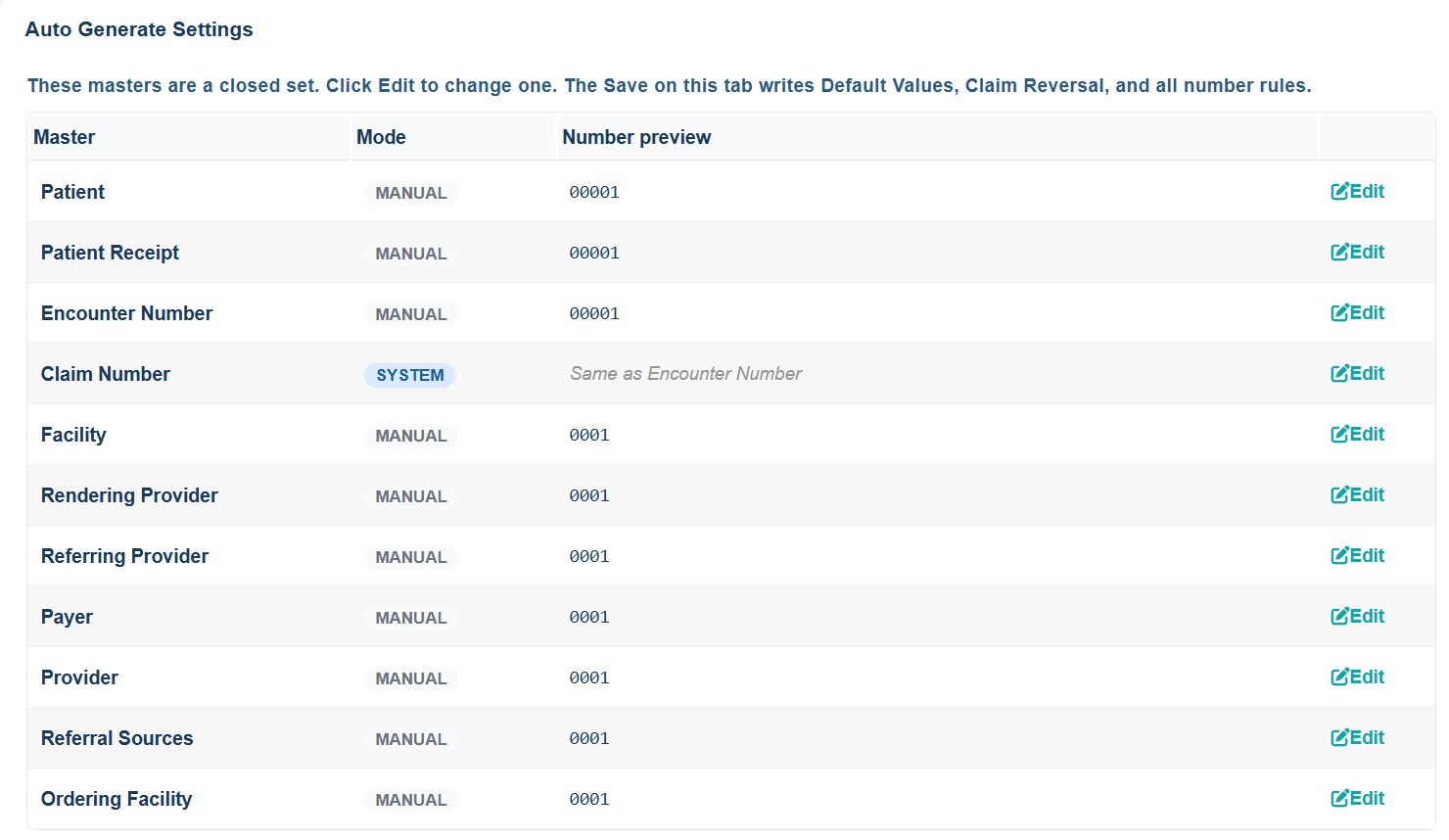
There are two kinds of row:
- Numbers — Patient, Patient Receipt, Encounter Number, Claim Number.
- Short names — Facility, Rendering Provider, Referring Provider, Payer, Provider, Referral Sources, Ordering Facility.
Modes
| Mode | For | What happens when a record is added |
|---|---|---|
| MANUAL | all | You type the number or short name. It is required. |
| SYSTEM | numbers | Leave the box empty and a number is made on save: Prefix + the next number padded with zeros + Postfix. |
| AUTO_SEQ | short names | Leave it empty and a short name is made: Prefix + the next number padded with zeros, e.g. F0007. |
| AUTO_NAME | short names | Leave it empty and the short name is the record's Name in capitals, e.g. QA North Clinic → QA NORTH CLINIC. |
With any automatic mode the box shows System Auto (you may override) — a number you type is
still kept. If a short name is already taken, -1, -2 … is added.
Steps: change a numbering rule
- On the row, click Edit. Edit Auto Generate opens.
- Choose the Mode, and fill Prefix, Postfix, Padding Length and Starting / Next Number. Preview (example) shows the result.
- Click Apply. The list changes, but nothing is saved yet.
- Click Save on the tab.
Example
Patient numbers should read QA00012, QA00013 …: set Patient to SYSTEM, Prefix
QA, Padding Length 5, Next Number 12. The next patient added with an empty ID #
becomes QA00012, and the next number moves to 13.
Claim Number: keep the encounter number
The Claim Number row has one more choice: Keep Encounter # as same Claim #.
- Yes — reuse Encounter Number: a claim created from an encounter gets the encounter's number. Encounter numbering must then be SYSTEM, so the numbers stay unique - this is checked when you apply either row and when you save.
- No — use this rule: claims are numbered by the Claim Number rule.
A new practice starts with Claim Number on SYSTEM, prefix CLM, not keeping the encounter number
(encounters start on MANUAL numbering).
Numbering on imports
In an import, a blank Patient # or encounter number is numbered in the same way when the mode is SYSTEM. On MANUAL, the import refuses rows without one.
Common problems
| You see | Why | What to do |
|---|---|---|
| … Padding Length is required and must be greater than 0 when … Mode is SYSTEM. | An automatic mode needs a padding length. | Edit the row and set it. |
| When 'Keep Encounter # as same Claim #' is enabled, Encounter Number Mode should be SYSTEM … | Encounters are numbered by hand (on Apply of either row, or on Save). | Set Encounter Number to SYSTEM, or choose No on the Claim Number row. |
| Patient ID cannot be empty (company is configured for manual short name entry). | Patient numbering is MANUAL. | Type an ID #, or switch Patient to SYSTEM. |
| Expiring Soon - days before end is required and cannot be negative. | The box is empty. | Enter 0 or more. |
| A colleague still sees the old setting | They were logged in before you saved. | Ask them to log in again. |