Encounter Bulk Update
What this is for
Encounter Bulk Update changes one thing — a provider, a diagnosis code, a procedure, a date, a status — on every encounter your search lists, in one step. It is how you fix a whole day's mistake, or prepare a batch of encounters for billing.
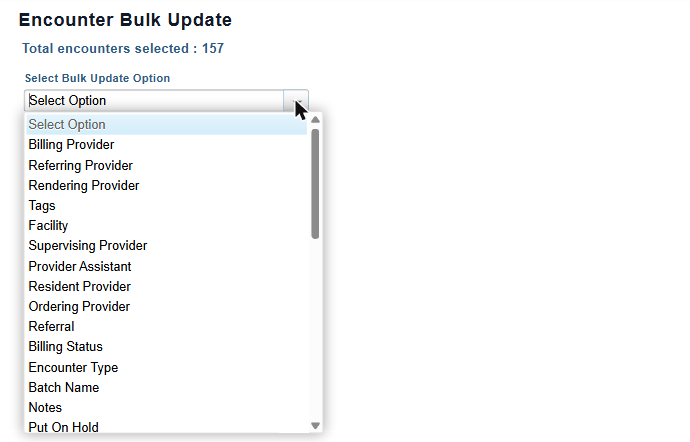
Before you start
- Open Encounter → Manage Encounter, search for exactly the encounters you want, and click Bulk Update. It needs the Can Bulk Update Encounter right (Put On Hold / Release Hold need only their own hold rights).
- It changes every encounter the search lists — all pages, not only the one on screen. Up to 1000 at a time.
- Encounters that already have a claim cannot be changed. If any encounter in your search has a claim, Bulk Update refuses to open — Billed Encounters cannot be Updated. Search for unbilled encounters only (Billed Option = UnBilled).
- There is no "are you sure?" — the change is made when you click Bulk Update (Delete is the exception: it is reviewed first).
- Need a different value on each encounter (each its own facility, DOS or diagnosis)? Use the Encounter Bulk Update import — a file with one row per encounter, run as an import job.
Steps
- Choose the option in Select Bulk Update Option.
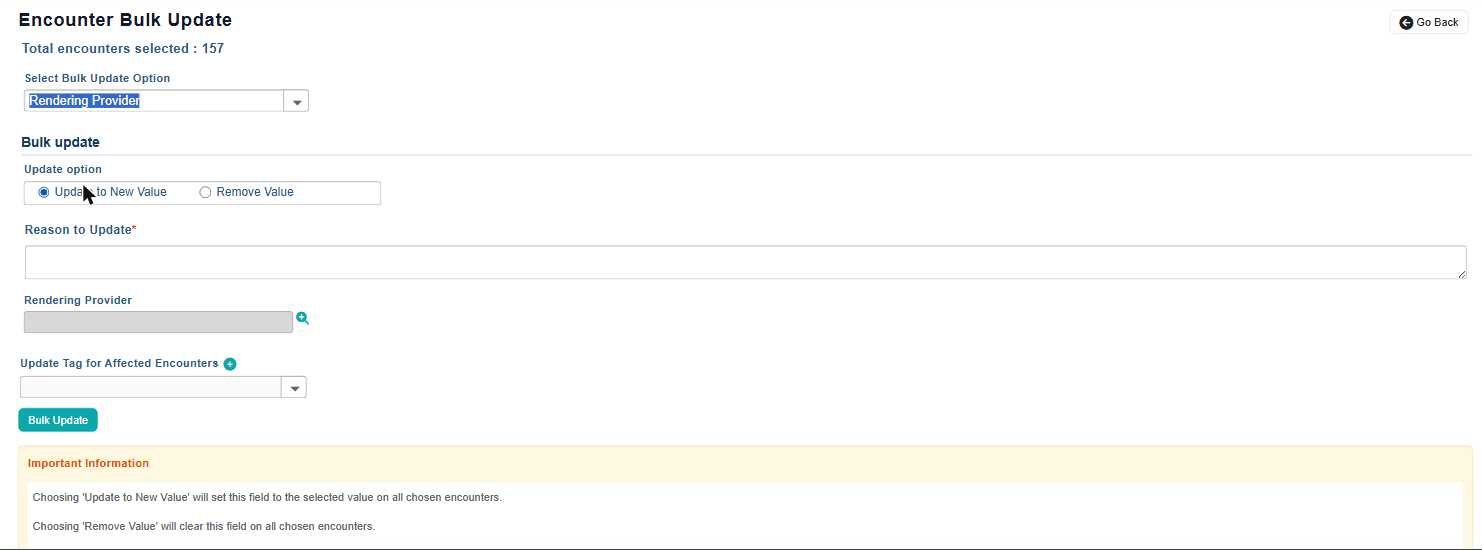
- For most options, choose Update to New Value or Remove Value.
- Type the Reason to Update (required, up to 100 characters) — it goes in each encounter's Event Log.
- Fill in the option's fields (below).
- Optionally choose a tag in Update Tag for Affected Encounters — it is added to every encounter that was changed, so you can find them again.
- Read the Important Information box, then click Bulk Update.
- The result reads Updated: X, Skipped: Y. Download Updated Encounters and Download Skipped Encounters give the details; the skipped file has a Skip Reason column. Go to Applied (n) and Go to Skipped (n) open Manage Encounter in a new tab on exactly those encounters.
Why an encounter is skipped
| Skip Reason | Meaning |
|---|---|
| Already billed | it has a claim |
| No change detected | it already has that value, or has no matching line |
| ICD code X not found | the diagnosis to find is not on it |
| Multiple matches for ICD X — skipped | the diagnosis is in more than one position and Any Position was chosen |
| Encounter N not changed: X is its only procedure, and an encounter must keep at least one. | the code is the encounter's only procedure; to remove the whole encounter, use Bulk Delete |
Providers, facility and referral
Billing Provider, Referring Provider, Rendering Provider, Supervising Provider, Provider Assistant, Resident Provider, Ordering Provider, Facility, Ordering Facility, Referral Source
- Update to New Value — pick the new one with the magnifying glass; it is set on every encounter.
- Remove Value — clears the field on every encounter.
- Encounters that already have that value are skipped.
Example
Dr. Adams saw Monday's patients at the Austin clinic, but they were entered under Dr. Blakely. Search DOS = Monday, Rendering = Blakely, facility Austin. Choose Rendering Provider, Update to New Value, pick Adams, reason Entered under wrong provider, and click Bulk Update. Result: Updated: 18, Skipped: 0.
Tags
- Update to New Value — adds the chosen tags; tags already on the encounters stay.
- Remove Value — removes all tags from the encounters.
Example
Tag this week's workers' comp encounters WC-Review for the coder: search them, choose Tags, Update to New Value, pick WC-Review, and click Bulk Update.
Encounter Type, Batch Name
Set or clear the Encounter Type (from your list — + adds a new type) or the Batch Name (up to 50 characters).
Example
Encounters imported from two files should be one batch: search both batches, choose Batch
Name, type SEP-WEEK4, and click Bulk Update.
Billing Status and Notes
Billing Status sets the status you choose on every encounter. Remove Value clears it.
Example
The coder finished 25 encounters: search Billing Status = Coding Pending, choose Billing Status, pick Ready to Bill, and click Bulk Update.
Notes adds a new note to every encounter — the Follow up Notes text — and sets the Billing Status you choose with it. Existing notes are not changed. Use it when the change needs a note, e.g. Coding complete - ready to bill with Billing Status = Ready to Bill. Billing Status is optional — left empty, it is not changed.
Put On Hold, Release Hold
- Put On Hold holds the encounters back from billing and adds the note On Hold : your text. Needs the Can Put Encounter On Hold right.
- Release Hold releases them and adds Release Hold : your text. Needs Can Release Encounter On Hold.
- Follow up Notes is required; Billing Status is optional — left empty, it is not changed.
Example
Payer X's authorisation is pending for 12 encounters: search them, choose Put On Hold, notes Waiting for auth - call 10/03. When the auth arrives, search Hold Status = On hold, choose Release Hold, notes Auth received.
Place Of Service
Sets the Place Of Service on the encounters and on all their procedure lines.
Example
Telehealth visits were entered as office visits: search them, choose Place Of Service = 10 - Telehealth in Patient's Home, and click Bulk Update.
Date of Service, Entry Date
- Date of Service — sets the encounter's DOS and the From / To dates of every procedure line.
- Entry Date — sets only the encounter's entry date.
Example
A batch was entered with tomorrow's date by mistake: search DOS = 10/01, choose Date of Service, pick 09/30, and click Bulk Update.
Diagnosis codes
ICD Code 1 … ICD Code 12
Puts the code you type into that one position on every encounter, and on the lines that point at that position. The other positions and the line pointers are not changed. The code must be in your ICD Codes. A position cannot be emptied this way — use Find ICD Code and Remove.
Example
Every encounter in a flu-clinic batch needs Z23 as the second diagnosis: choose ICD Code 2,
type Z23, and click Bulk Update.
Find ICD Code and Replace with New
Finds a diagnosis code and replaces it in the same position — on the encounter and its lines. ICD Position: Any Position (default) or a specific one. With Any Position, an encounter that has the code twice is skipped.
Example
E11.9 was used where E11.65 was meant: Find ICD Code E11.9, Replace With ICD Code
E11.65, Any Position. Encounters without E11.9 are skipped as ICD code E11.9 not found.
Find ICD Code and Remove
Removes a diagnosis code; the codes after it move up one position to fill the gap. Each
procedure line's diagnosis pointers (ICDs) follow, so every line still points at the same
diagnoses, in the same order: removing position 2 turns a line's 1,3 into 1,2.
An encounter with a line that points only at the code being removed is skipped and left unchanged (Line 36415 points only at ICD I10 — skipped), because the line would be left with no diagnosis. Point that line at another diagnosis on the encounter, then run it again.
Procedures
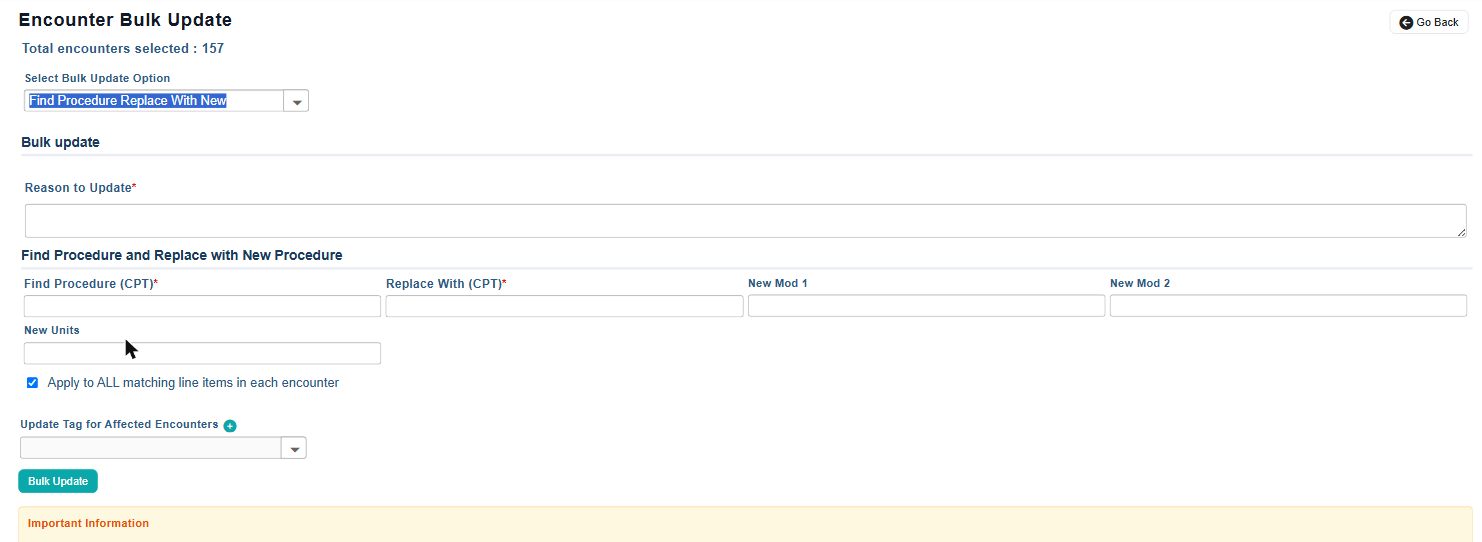
The procedure options work on the encounters' active lines whose code matches Find Procedure (CPT). Codes must be in Procedure codes. Apply to ALL matching line items in each encounter (ticked by default) changes every matching line; unticked, only the first.
Add Procedure To Encounter
Adds a new line to every encounter: Procedure (CPT), Units (default 1), Mod 1, Mod 2. The line takes the encounter's DOS, Place of Service and diagnosis codes. Existing lines are not changed — and an encounter that already has the code gets a second line.
Example
Every lab encounter this week also needs venipuncture: search them, choose Add Procedure To
Encounter, Procedure (CPT) 36415, Units 1.
Find Procedure Update Mod Units
Changes the modifiers and/or units on matching lines. Only the fields you fill in change; blank fields are left as they are (so this cannot clear a modifier — use Remove Modifiers).
Example
97110 was entered with 1 unit instead of 2 on a therapy batch: Find Procedure 97110,
New Units 2.
Find Procedure Remove Modifiers
Clears Modifier 1 and/or Modifier 2 (tick which) on matching lines. Code and units stay.
Example
Modifier 25 was added to 99213 by mistake: Find Procedure 99213, tick Modifier 1.
Find Procedure Replace With New
Changes the code on matching lines to Replace With (CPT), gives them the new code's description, and sets New Mod 1, New Mod 2 and New Units if you fill them. Replace With must be a code in Procedure codes — otherwise nothing runs: Invalid procedure code. It does not exist in the master.
Example
A batch was coded 99213 but should be 99214: Find Procedure 99213, Replace With
99214. Encounters without 99213 are skipped.
Find Procedure Remove From Encounter
Removes matching lines from the encounters (they are kept in history, not erased). An encounter is skipped rather than left with no procedure.
Example
36415 was added to encounters that did not have a blood draw: Find Procedure 36415. An
encounter where 36415 is the only line is skipped.
Delete
Deletes the encounters (they are kept in history, marked deleted with your reason, and their tags removed). It needs the Can Delete Encounter right; without it, Delete is not in the option list.
- Choose Delete, type the reason, and click Review Impact.
- The review shows Total | Valid | Invalid, and lists the invalid ones with the reason — Do not have access to delete the encounter, Encounter is already billed / linked with claim, or Encounter is on hold. Release the hold before deleting. The Excel icon exports that list.
- Click Apply Delete. Total N encounters deleted successfully. The option box is cleared, ready for the next change.
Example
A test import created 40 encounters: search by its Batch Name, choose Delete, reason Test import, Review Impact (Valid: 40), Apply Delete.
Common problems
| You see | Why | What to do |
|---|---|---|
| Billed Encounters cannot be Updated. | Some encounters in the search have claims. | Add Billed Option = UnBilled to the search. |
| … only 1000 Encounters is the limit for bulk action. | The search lists more than 1000. | Narrow the search and run in parts. |
| There are no records to bulk update. | The search lists nothing. | Change the search. |
| Please enter the reason to update the selected encounters | No reason. | Type one. |
| Billing Status cannot be empty | Billing Status with Update, but no status chosen. | Pick a status, or use Remove Value to clear it. |
| Invalid procedure code. This CPT is not available in the Procedure Master. | The code is not in Procedure codes. | Add it there first. |
| Invalid ICD Code | The code is not in ICD Codes. | Add it there first. |
| Put On Hold / Release Hold not in the list | Your role lacks that right. | Ask your administrator. |
| A form shows New Units … must be empty you did not type | A value from an option you chose before is kept. | Go Back, open Bulk Update again, and choose the option fresh. |