Manage Patient
What this is for
Manage Patient is where patients are found, added and kept up to date — their details, their insurance, and what is happening on their account. On the screen the heading reads Patient List; the menu calls it Manage Patient.
Before you start
- Open it from the menu: Patient → Manage Patient.
- It searches as soon as it opens and lists patients by last name.
- A deleted patient never appears here.
- Buttons you do not have the right for are not shown — for example Add New Patient and Delete. Ask your administrator if you need one.
Steps: find a patient and change their details
- Fill in what you know — Last Name, First Name, Patient # (CSV), DOB or a phone number — and click Search.
- Click the Patient #. The Patient Summary opens in a new tab.
- On the summary, click Edit patient — the pencil at the bottom of the icon bar on the right. Patient Setup opens in its own tab.
- Make the change and click Save.
For a quick change to name, date of birth, address or phone, Quick Edit on the patient card is faster — see Reading the results.
Steps: add a new patient
- Click Add New Patient. Patient Setup opens.
- Under Basic Information, fill in Last Name, First Name, DOB and Gender — they are required. ID # is filled in for you unless your practice numbers patients by hand.
- Add the Address and Contact details.
- Optionally, under Payer Information, choose the Payer and enter the Policy Number: together they create the patient's primary insurance. Fill both or neither: one without the other is refused. You can add it later instead — see Insurance.
- Click Save. The other tabs appear after the first save.
If the patient already exists — same first name, last name, gender and date of birth — saving stops with Another patient record exists under the same first name, last name, gender and DOB. Search for them instead of adding them twice.
The search row

| Field | What to enter |
|---|---|
| Last Name, First Name | The start of the name. |
| Patient # (CSV) | One or more patient numbers, separated by commas. |
| DOB | The exact date of birth. |
| Mobile Phone, Home Phone | The start of the number, typed any way — (651) 555-0111, 651-555-0111 and 6515550111 find the same patient. |
| Order By | Last Name (the default), First Name, both, or created date. |
Reset puts the defaults back and searches again.
Advance Search adds more filters, in sections: Date Condition (created date), Payer (primary and secondary payer and type, payer group), Demographics (Medical Record Number, External Id, SSN, City, State, Zip), Contact, Other (batch name, patient status), Import Details, Tasks and Tags. The [Any], [Empty] and [Exclude] options work as in Manage Claim: Primary Payer [Empty] finds the patients with no primary insurance, and [Exclude] keeps patients with no insurance at all. The created date range includes the whole To day, and SSN can be typed with or without dashes.
Reading the results
Patients show as cards at first; the icons beside Order By switch to a table. Total shows how many matched.

| Icon | What it does |
|---|---|
| Patient Summary | Opens the patient's summary — same as clicking the Patient #. |
| Quick Edit | Edits the patient in a side panel: Demographics, Address, Notes and Alerts tabs. Next moves to the next patient. |
| Delete | Deletes the patient, after two confirmations and your password. Not possible once the patient has encounters or claims. |
| Event Log | Who changed what on the patient. |
| Has Active Tasks | Shown only when the patient has an open task; opens it. |
The Patient Summary
The summary is the patient at a glance, in its own tab.
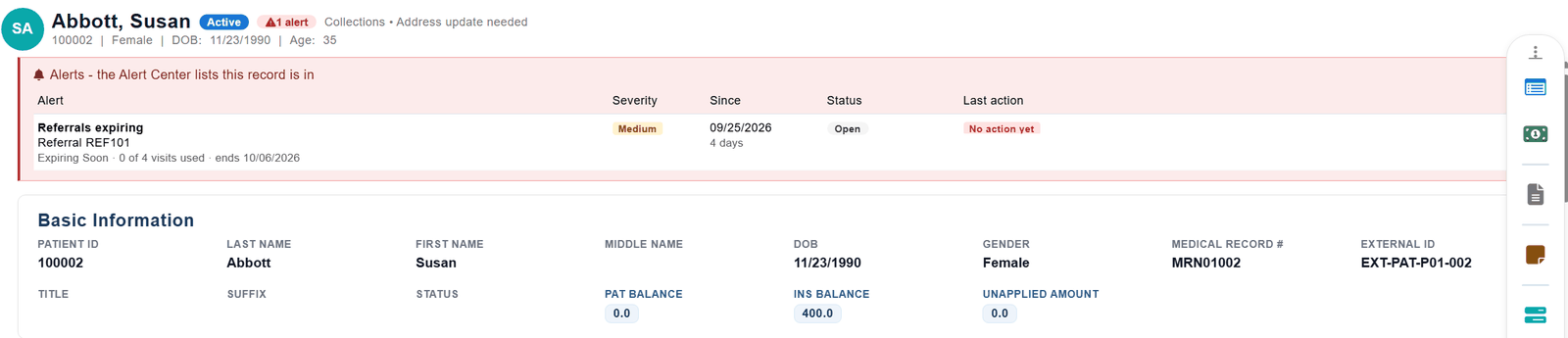
Further down: Address, Contact, the guardian, Insurance, Referrals, Authorizations — and, when there are any, the patient's unbilled encounters, claims, receipts, statements, eligibility responses, payments, notes and documents.
The icons on the right open the patient's Claims and Payments, Notes, Assign task, the alerts, and — at the bottom — Edit patient.
Patient Setup
Patient Setup is where the patient is edited. Its tabs: Demographics, Insurance, Referrals, Authorizations (Patient Authorizations), ICD Codes, Notes, Documents and Event Log. There is one Save, at the top right.
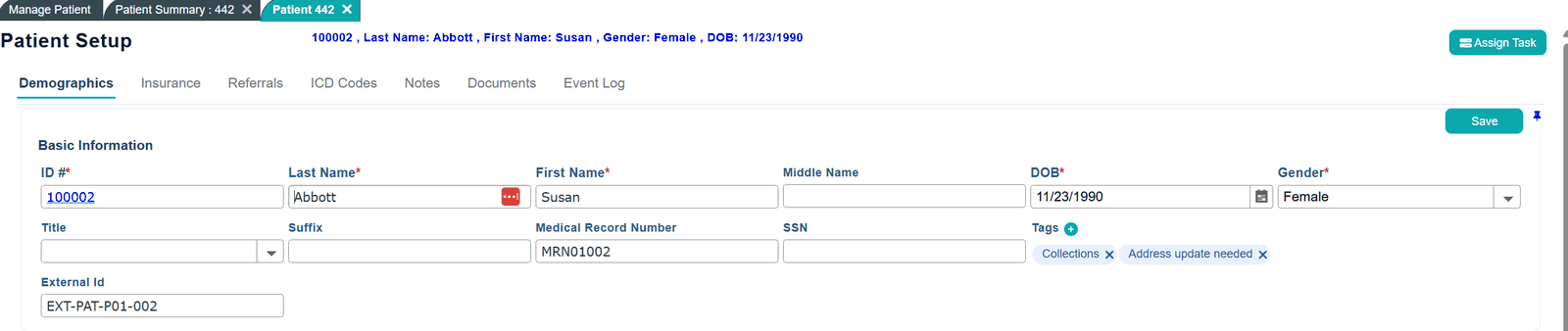
Demographics holds Basic Information, Address, Contact, and the Guardian Information (Statement Contact) with its address — the person patient statements go to.
Insurance
A patient's insurance lives on the Insurance tab of Patient Setup, grouped into profiles. A profile is a set of insurances used together — most patients have one. Claims and encounters pick a profile, and its insurances are billed in order: Primary, then Secondary, then Tertiary.

To add an insurance:
- Select the profile on the left — or click Add New Profile and name a new one.
- Click Add New Insurance. The payer look-up opens; pick the payer.
- Fill in Policy Number (required), and the group, dates and copay if you have them.
- Under Policy Holder Information, choose the Patient Relationship — Self when the patient is the policy holder — and fill in the holder's name, date of birth, gender and address.
- Click Save.
The order is the order you add them
The first insurance added to a profile is Primary, the next Secondary, and so on. The up and down arrows under the list do not change the order yet. Add them in the right order; if an order is wrong, ask your administrator.
To check coverage with the payer, use Add to Eligibility Check Queue on the list — see below. The replies show on the insurance and on the Patient Summary under Eligibility Responses.
Working on many patients at once
These buttons act on every patient that matches your current search — there are no check boxes. Narrow the search first.
| Button | What it does | Limit |
|---|---|---|
| Assign Task | Creates a task on each matching patient. | 50 |
| Add to Eligibility Check Queue | Queues the primary insurance on each patient's Default insurance profile for an eligibility check. A patient whose Default profile has no primary is skipped with a message. | 50 |
| Bulk Update | Adds notes, changes tags, or deletes patients. | 300 |
| CSV Export | Downloads the list as a CSV file. SSNs show only their last four digits (XXX-XX-1234). |
— |
Bulk Update needs a Reason. For a delete, click Review Impact first: patients with encounters or claims cannot be deleted and are left out.
Common problems
| You see | Why | What to do |
|---|---|---|
| Another patient record exists under the same first name, last name, gender and DOB. | The patient is already in eClaim Pilot. | Search for them and use that record. |
| Another patient record exists under the same patient ID. | The ID # is already used. | Clear it so one is given, or use another. |
| Patient cannot be deleted because claims exist (or encounters exist) | The patient has been seen or billed. | Leave the patient; it cannot be deleted. |
| …only 1000 records are the limit for bulk action. | More than 300 patients match — the message says 1000, but the limit is 300. | Narrow the search to 300 or fewer. |
| Primary insurance not found for patient ID … | The eligibility check needs a primary insurance. | Add the patient's insurance first. |
| Payer Eligibility PayerId is missing for the payer: … | The payer is not set up for eligibility checks. | Ask your administrator to add the payer's eligibility ID. |
| …is already added to the Eligibility Check Queue. | That insurance is already waiting for a check. | Wait for the reply. |
| An error after choosing Order By: Patient # | That sort order does not work yet. | Choose Last Name or another order. |
| Invalid User Authentication. when deleting | The password was wrong. | Enter your own password again. |
| Only up to 15 unique tags can be assigned. | A patient can have at most 15 tags. | Remove a tag first. |