Statement Settings
What this is for
The Statement Settings tab holds what your practice prints on every patient statement — the practice address, a message at the bottom, the logo and payment images — and the details of a mailing company's SFTP server.
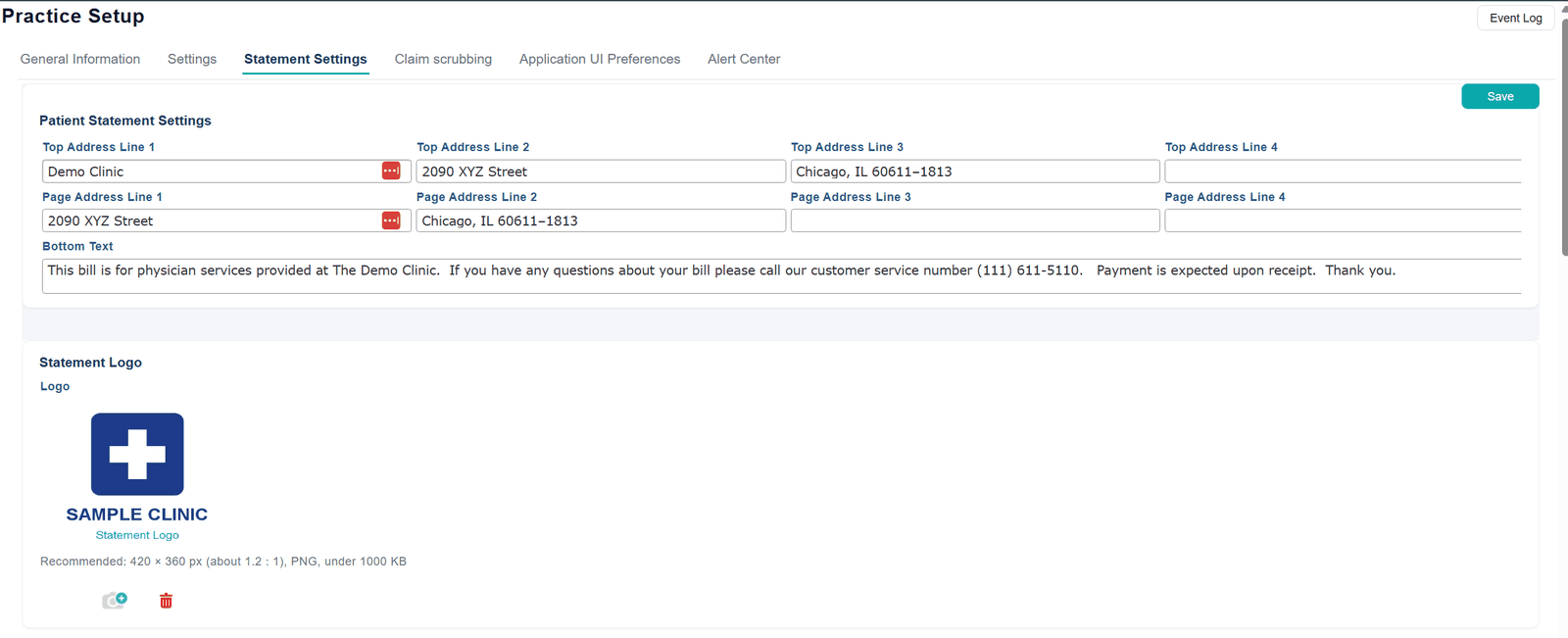
The statement layout is not chosen here. It is picked each time statements are printed, on a claim's Statement tab or when generating patient statements.
Before you start
- Open it from the menu: Master Setup → Practice Setup, then the Statement Settings tab.
- Nothing is saved until you click Save — that includes uploading or deleting an image. A spinning icon beside Save means there are unsaved changes.
Patient Statement Settings
| Field | What prints | Example |
|---|---|---|
| Top Address Line 1–4 | The practice name and address at the top of page 1, beside the logo. Up to 100 characters each. | Sunrise Family Clinic · 12 Main St · Austin, TX 78701 · Ph (512) 555-0100 |
| Page Address Line 1–4 | A second address in the box at the top right of every page — typically where to send payment. | Make checks payable to: · Sunrise Family Clinic · PO Box 400 · Austin, TX 78767 |
| Bottom Text | A message at the foot of the statement. Up to 1,100 characters. | Payment is due within 30 days. Questions? Call (512) 555-0100. |
Images
Each image has an Upload and a Delete icon. It must be an image file of 1000 KB or less; PNG is recommended.
| Image | Recommended size | Where it prints |
|---|---|---|
| Statement Logo | 420 × 360 px | Top left of every layout. Never stretched. |
| Patient Statement Top Payment Image | 1665 × 240 px — a wide banner | Under the logo row, on the Enhanced Claim Statement only. |
| Patient Statement Page Payment Image | 500 × 400 px | Beside the payment details, on the Premium and Enhanced Claim statements. |
| Patient Statement Bottom Image | 1665 × 180 px — a wide banner | At the bottom of the last page, on every layout. |
What each layout prints
| Setting | Premium | Enhanced Claim | Claim Summary | Service Detail | Account Activity | Procedure Activity |
|---|---|---|---|---|---|---|
| Top Address Lines | ✓ | ✓ | ✓ | ✓ | ✓ | ✓ |
| Page Address Lines | ✓ | ✓ | ||||
| Bottom Text | ✓ (short) | ✓ | ✓ | ✓ | ✓ | |
| Logo | ✓ | ✓ | ✓ | ✓ | ✓ | ✓ |
| Top Payment Image | ✓ | |||||
| Page Payment Image | ✓ | ✓ | ||||
| Bottom Image | ✓ | ✓ | ✓ | ✓ | ✓ | ✓ |
Keep the Bottom Text short if you use Premium
On the Premium Patient Statement the bottom text sits in a small box under Payment Options. A long message is cut off there — keep it to a few words, or use another layout.
Third Party SFTP Connection for Patient Statement upload

For a mailing company that prints and posts your statements. They give you the details.
You send each batch
Nothing is uploaded automatically. On Patient Statements → Batch, Upload to mailing company on a batch sends its statement file to this server.
| Field | Notes |
|---|---|
| FTP Address | the server name, e.g. sftp.mailhouse.com |
| User ID, Password | the login they gave you. The password is stored encrypted and is never shown again: once saved the box reads Saved - leave blank to keep. Type a new one only to change it. |
| Type (FTP or SFTP) | blank means sftp |
| FTP Port | blank means 22 |
| Folder | the folder to upload into, e.g. /inbound |
Click Save first, then TestConnection — the test uses the saved details. It answers successfully connected or Error in connecting sftp.
Steps: set up statements for the first time
- Fill Top Address Line 1–4 with the practice name, street, city and phone.
- If payments go to a different address, fill Page Address Line 1–4.
- Type a Bottom Text message.
- Upload the logo, and a bottom image if you have one.
- Click Save. Data Saved Successfully appears.
- Open a claim's Statement tab and preview a statement to check how it looks.
Common problems
| You see | Why | What to do |
|---|---|---|
| The selected file is not an image. | The file is not an image. | Save it as PNG and upload again. |
| Please select an image of size less than 1000 KB. | The image is too large. | Make it smaller, or save it at a lower quality. |
| The image does not print | It prints on some layouts only — see the table above. | Choose a layout that prints it. |
| Upload Host Name is blank (or User Name, Password, Folder) | TestConnection was clicked with a field empty, or before saving (a blank Password tests the saved one). | Fill every field, Save, then test. |
| Practice setup cannot be changed for demo practices | This is a demo practice. | Ask an administrator. |