Create Group Encounters
What this is for
When many patients receive the same service — a group therapy session, a school screening, a flu clinic — Create Group Encounters makes one encounter for each patient in a single step. Everything on the encounter comes from a claim macro: providers, facility, place of service, diagnosis codes and procedure lines. Only the date of service (and the macro) can differ per patient.
It creates encounters only. Claims are made from them later, in Create Claim by Encounter — or use Create Group Claim to make claims directly.
Before you start
- A claim macro for the service — Claim macros. It must have its providers, facility, place of service, diagnosis codes and lines.
- Optionally, a Patient Group of the patients who attend together (below), to load them in one click.
- Open Encounter → Create Group Encounter.
Patient groups
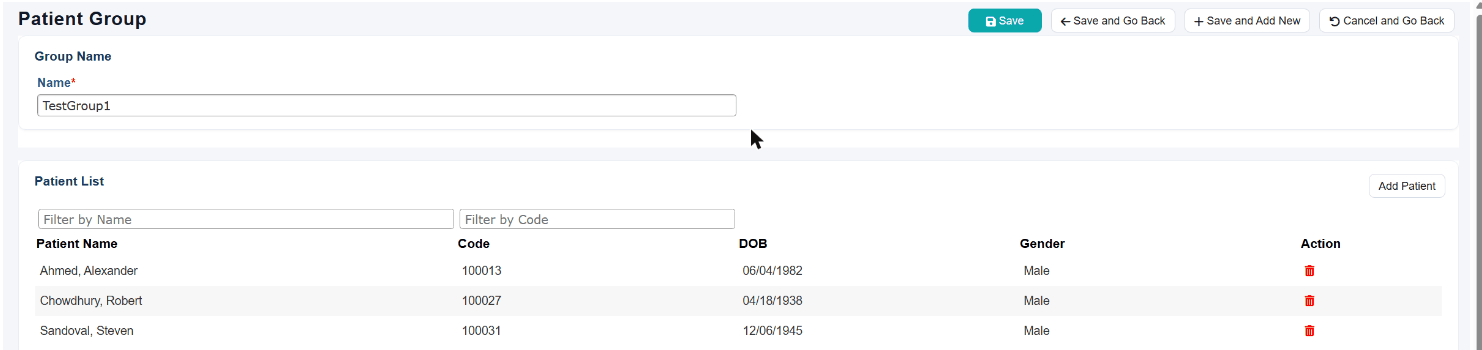
A Patient Group is a saved list of patients — Tuesday ABA group, Lincoln Elementary 3rd grade. Create it in Patient → Patient Group → Add New Patient Group: type the Name, click Add Patient for each patient, and Save. A group needs at least one patient, and a patient can be in it only once. Remove a patient with the bin icon, then Save.
Steps: create group encounters
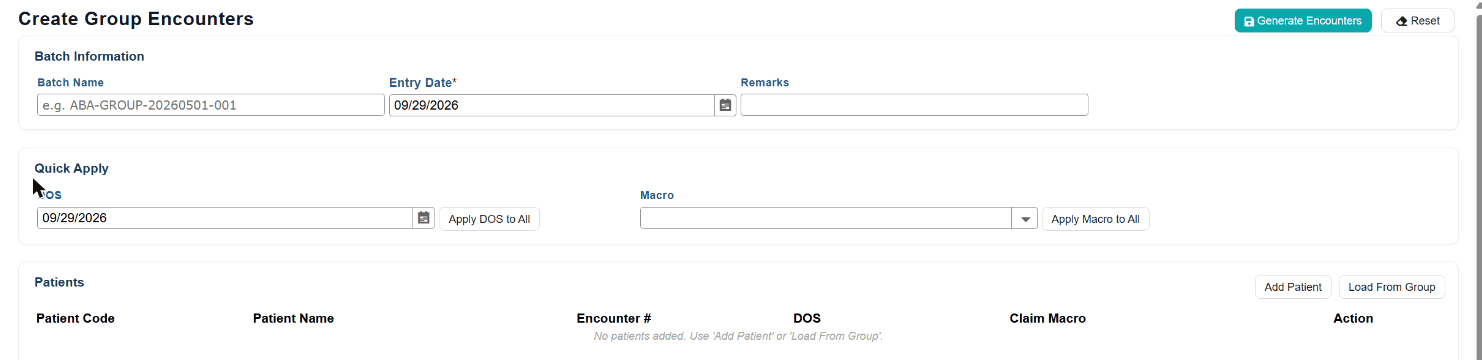
- Batch Information: type a Batch Name (required — you find the batch by it later), check the Entry Date, and add Remarks if you like.
-
Add the patients:
- Load From Group — adds every patient in a Patient Group;
- Add Patient — adds one patient.
Both can be used together; a patient is listed only once. 3. Quick Apply: choose the DOS and click Apply DOS to All; choose the Macro and click Apply Macro to All (only active macros are listed). Patients added afterwards get them too. 4. Change the DOS or Claim Macro on any row that differs. If your practice numbers encounters by hand, type each Encounter # — each must be different. 5. Check the Summary: Total, Missing DOS, Missing Macro, (Missing Encounter #), Ready. 6. Click Generate Encounters. The encounters are created in the background — Create Group Encounter job scheduled successfully … Please check the Group Encounter History for Job Status. A row with a DOS in the future is refused before anything is created — Row 2: DOS cannot be in the future (…) — correct the date and Generate again.
Example
The Tuesday social-skills group met on 09/30 with 8 children. Batch Name SOCIAL-0930, Load From Group Tuesday Social Skills, DOS 09/30 Apply DOS to All, Macro 97158 Group Adaptive Apply Macro to All. One child attended the Monday make-up instead — change that row's DOS to 09/29. Generate Encounters: 8 encounters, each billed to the child's primary insurance.
What each encounter gets
- Providers, facility, ordering facility, referral source, place of service, diagnosis codes and procedure lines (codes, units, modifiers, diagnosis pointers) — from the macro.
- The DOS, Entry Date and Batch Name from the screen.
- Billing status NotReviewed.
- Bill To the primary insurance of the patient's Default insurance profile (the oldest active profile if none is named Default) — or Self if that profile has no primary (not an error; check those encounters).
Group Encounter History
Encounter → Group Encounter History lists each batch, newest first: Total, Success, Failed, Skipped and the Status:
| Status | Meaning |
|---|---|
| PENDING, PROCESSING | still being created |
| COMPLETED | no row failed — every encounter created, or skipped as a duplicate |
| PARTIAL | some created, some failed |
| FAILED | rows failed and none were created — see Remarks |
Search by Batch Name or Status (typed exactly, e.g. PARTIAL). More Actions on a batch:
- View Details — each patient's row with its Status and Message, and the Encounter # created (click it to open the encounter);
- Encounter Details — opens Manage Encounter with this batch's encounters;
- Download Log — the full log, with the real reason for any failure.
| Row status / message | Meaning | What to do |
|---|---|---|
| SUCCESS — Encounter created successfully | created | — |
| SKIPPED — Duplicate skipped. Encounter 00030 already exists for patient P0012 on 09/11/2026 with the same facility, rendering provider and billing provider. | that encounter - entered by hand, imported or from a group - matches the row the way the Encounter screen checks for a duplicate | nothing — open the named encounter if in doubt |
| FAILED — Unable to build encounter packet | the patient or macro was not found, the macro has no lines, or no DOS | open Download Log for the reason; fix the macro |
| FAILED — other message | the encounter failed its checks, e.g. a duplicate Encounter # | fix and run again |
Re Use History (in View Details) opens Create Group Encounters again with the same batch name, patients and macros — handy for a group that meets every week. Every row starts on today's date and Remarks is blank; for another day, choose the date and click Apply DOS to All.
Which duplicates are skipped
A row is skipped when the patient already has an encounter on that date with the same facility, rendering provider and billing provider - however it was entered. With another facility or provider it is a separate service and the encounter is created.
Common problems
| You see | Why | What to do |
|---|---|---|
| Please add at least one patient before generating encounters. | The list is empty. | Add patients or load a group. |
| Batch Name is required. | No batch name. | Type one. |
| Row N: DOS is required. / Row N: Claim Macro is required. | A row is missing its date or macro. | Fill it, or use Quick Apply. |
| Encounter # is missing for … | Your practice numbers encounters by hand. | Type a number on each row. |
| Encounter # X is entered for more than one row | Two rows share a number. | Make them different. |
| No Patient Group created. | There are no groups yet. | Create one in Patient → Patient Group. |
| A patient group with the name 'X' already exists. | The group name is taken. | Choose another. |
| Nothing appears after Generate | It runs in the background. | Open Group Encounter History. |